Features & Help

Everything DungeonRig does — made easy

A friendly field guide for Game Masters. Walk through the essentials below to get the feel, then dip into the "how do I…?" list — organised the way a session actually runs: first you set a game up, then you play and command it. Many answers have an Open in DungeonRig button that takes you straight to the screen.

What is DungeonRig, really?

It's the screen behind your table. You build your world, prepare your maps, and run the night — at the table on a TV, on a second monitor, or for players joining from anywhere in a browser. You're always in charge of what everyone sees.

As a DM you'll live in a simple loop: build an adventure, prep a scene, then run it live. The fiddly bits — fog, line of sight, initiative, the dice maths — quietly handle themselves, so you can keep your eyes on the story (and the snacks).

Let's do a few things together

Everyday tasks, start to finish.

1

Stock up — free map packs & your Library

Before you run anything, you need things to run it with: maps, tokens, monsters, music. In DungeonRig it all lives in your Library, and the starter content is free. Packs from the Store are ready-made bundles you install in a click — and once they're in, they're yours.

  1. Open the Store from the left rail (or Visit asset store on Home).
  2. Browse the packs and hit Install on the ones you fancy — the starter packs are free.
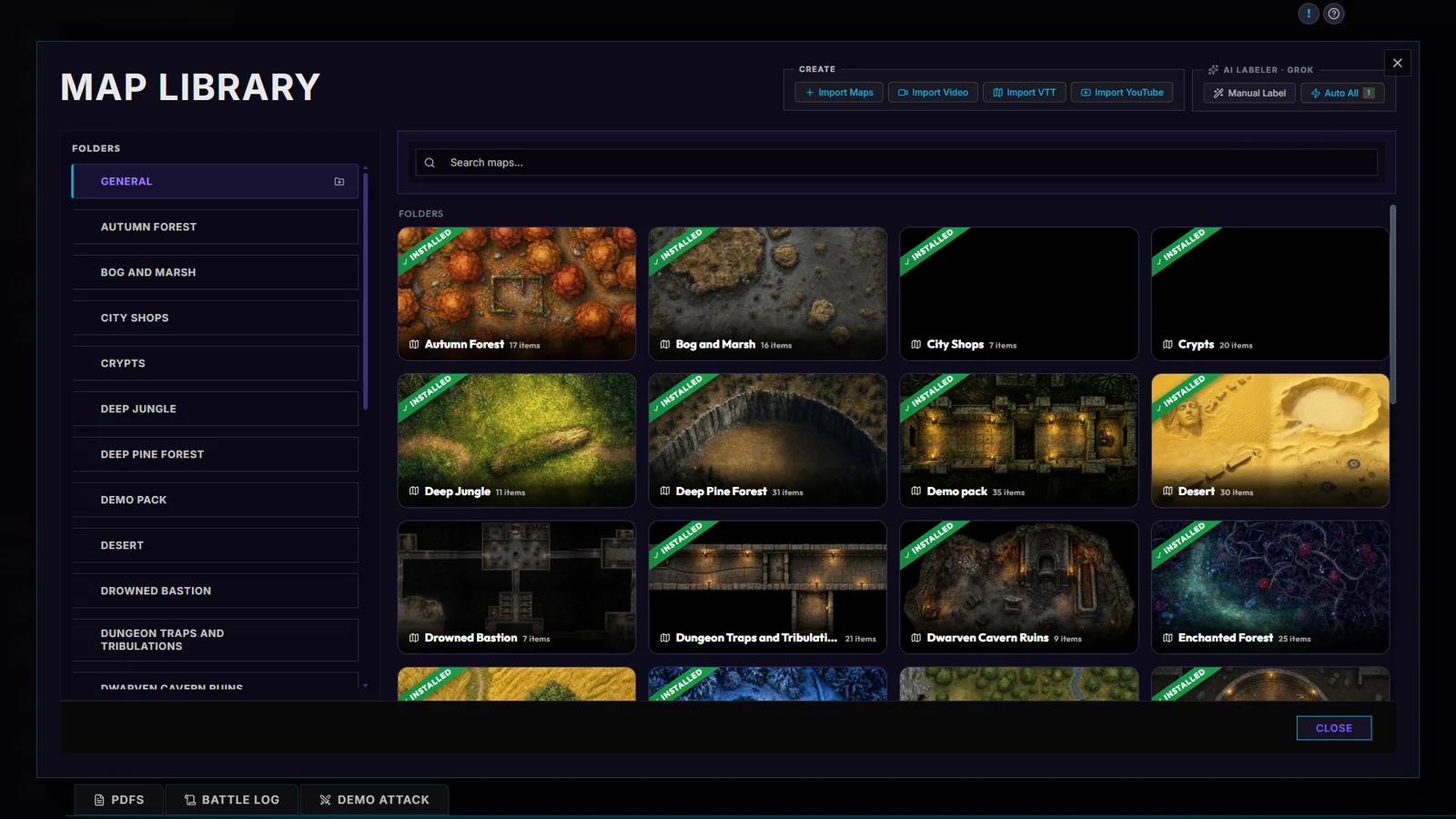
  3. They land in your Map Library, each pack in its own folder.
  4. Everything you install or import lives here, on your machine.

Think of the Library as your shelf of boxed sets — always ready to pull down.

▶ Open in DungeonRig
Your Map Library — packs land in their own folders
2

Open a map and set it up — straight from the Library

Getting a map table-ready takes seconds. Preview it, open it in the Map Forge to line the grid up with the squares, then Test it on the live table. From that moment it's a live battle map with tokens, measuring and fog all switched on.

  1. Open the Map Library and click a map’s eye button to preview the artwork.
  2. Click the hammer to open it in the Map Forge and line the grid up on the Grid tab.
  3. Click Test to try it with the live tools (save first if you changed anything) — or the play button (Play this map now) for a quick session.
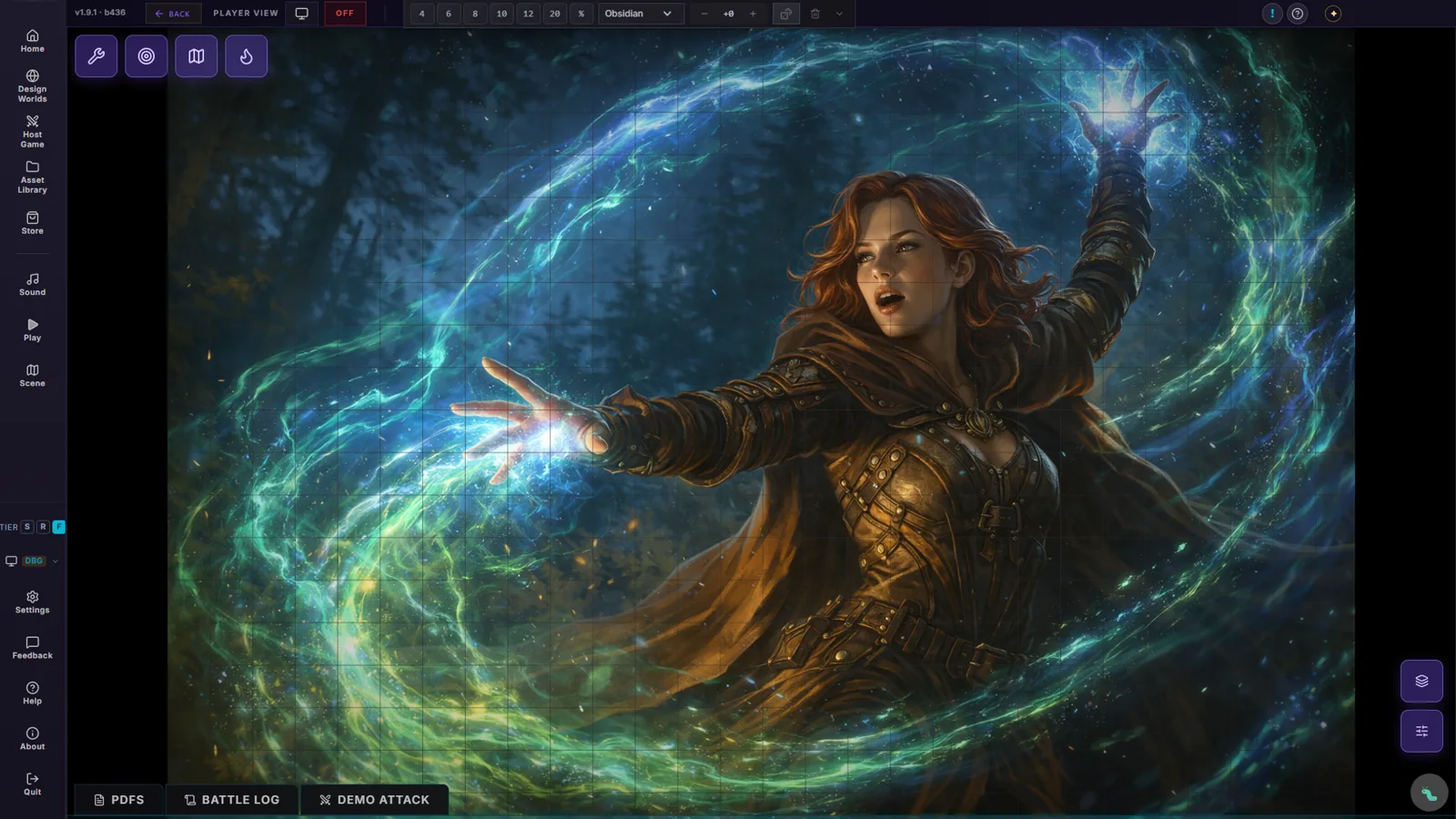
  4. The map, grid and tools appear, ready to play.

One click from a thumbnail to a fully rigged battle map.

▶ Open in DungeonRig
A map loaded and table-ready, grid and tools on
3

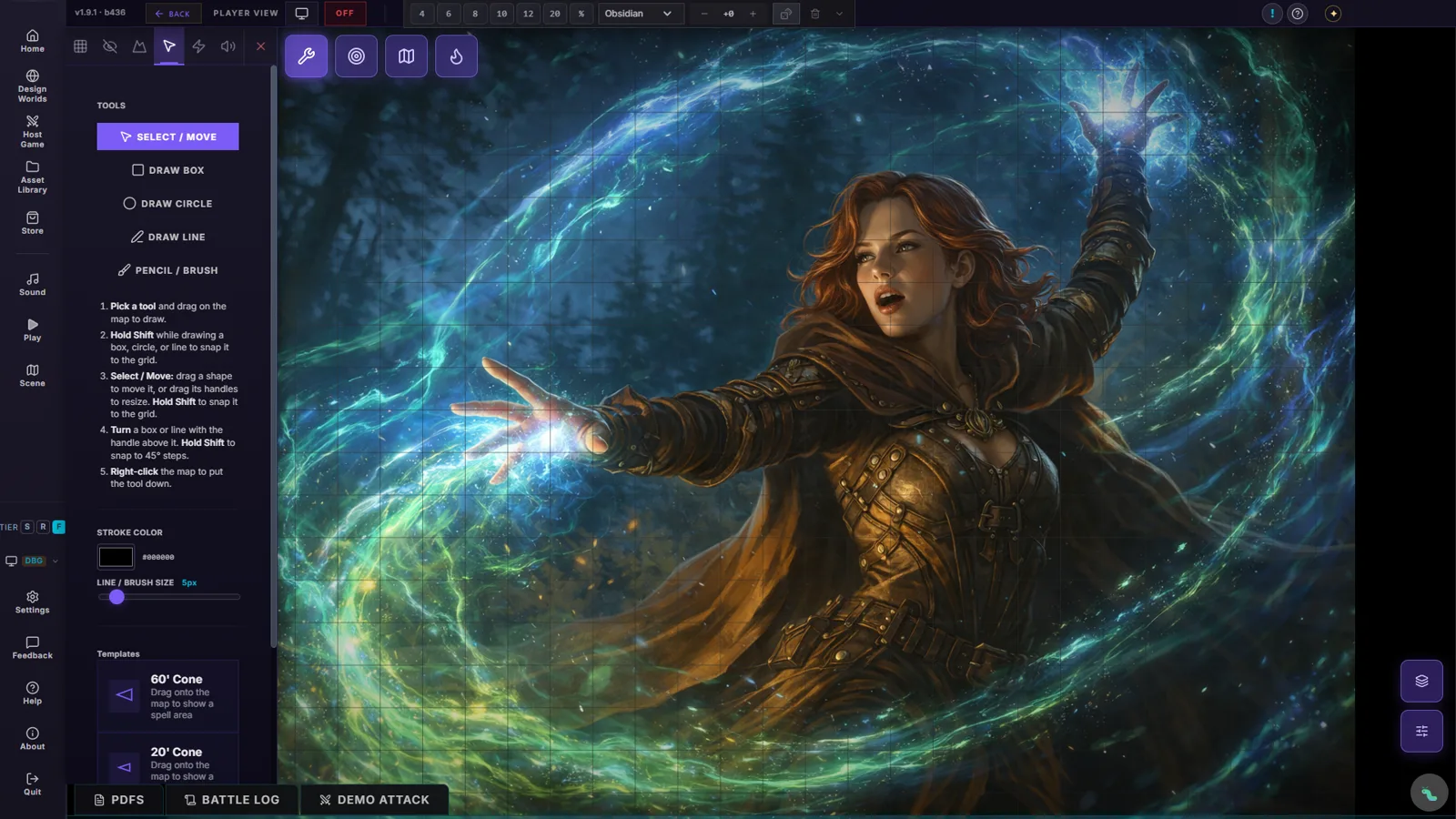
The on-map toolbox — fog, lines & shapes

While you play you've got a little toolbox right on the map. Paint fog to hide a room and wipe it away as they explore. Draw a circle or box to show a fireball or a wall of force. Sketch freehand, drop a measuring line, or ping to point — all without leaving the table.

  1. Pick the fog brush and paint to conceal — or erase to reveal.
  2. Grab a shape tool (box, circle, line) and drag out an area of effect.
  3. Use the pencil for freehand marks, or ping to point at something.
  4. Everything you draw shows to your players in real time.

"Everyone in THIS circle, make a Dexterity save." *draws circle*

▶ Open in DungeonRig
The live play surface — your on-map tools sit top-left
4

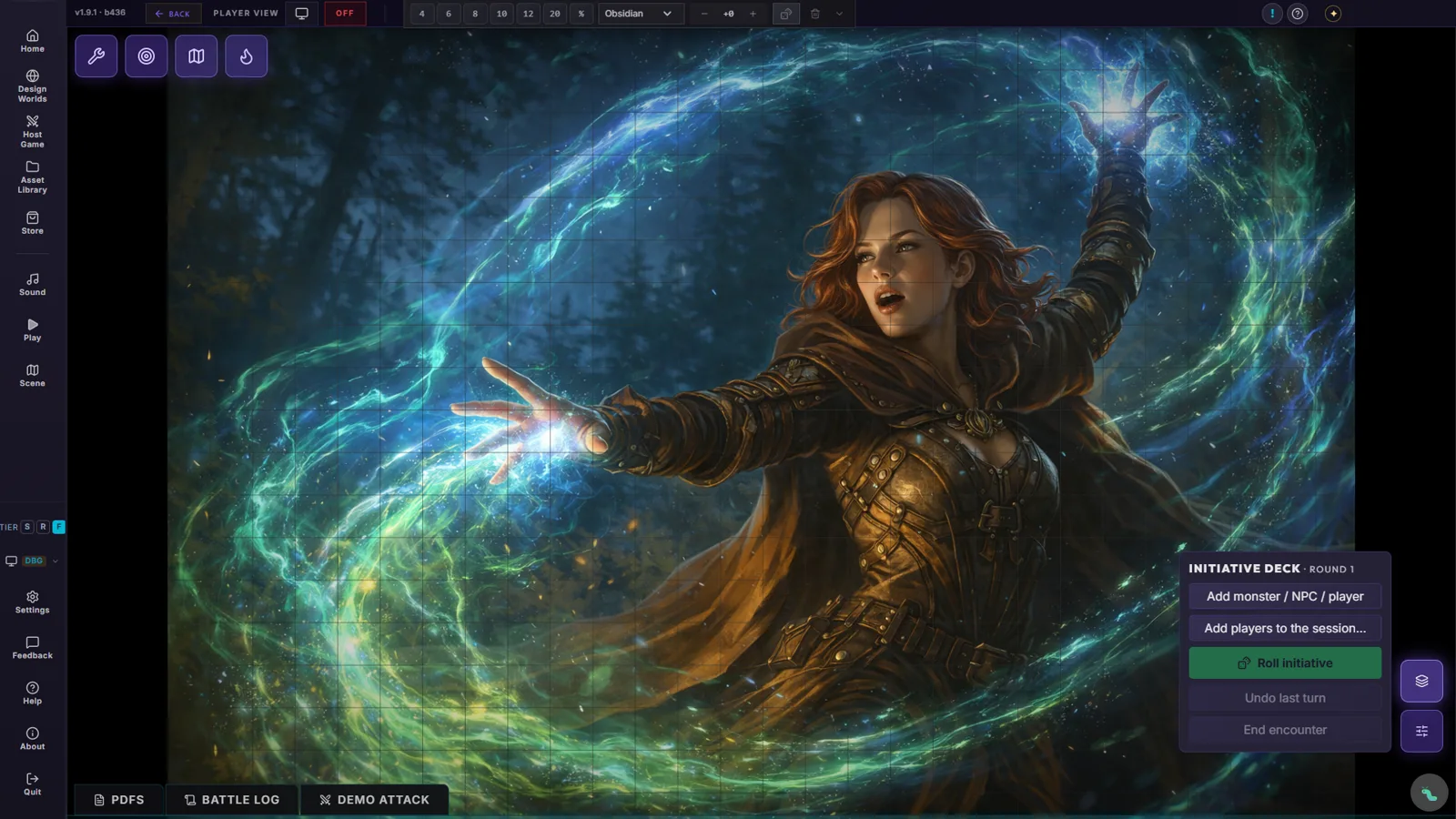
The Deck — monsters, cards & hit points

Combat runs from the Deck. Open it, add your monsters and they arrive as cards along the bottom of the map, stat blocks and tokens included. Drag a portrait off its card onto the map, roll initiative, and the active card leads the turn. When a hit lands, change hit points right on the card — no spreadsheet, no scribbling.

  1. Click Deck (the card icon at the bottom right) and choose Add monster / NPC / player.
  2. Drag the portrait off a card onto the map where the creature lurks.
  3. Roll initiative; the active card shows whose turn it is, and Next turn moves play on.
  4. Open a card for hit points, states, attacks and death saves.

States even count themselves down, so you can keep your eyes on the table.

▶ Open in DungeonRig
The Deck — add combatants and roll initiative; cards line the bottom of the map
5

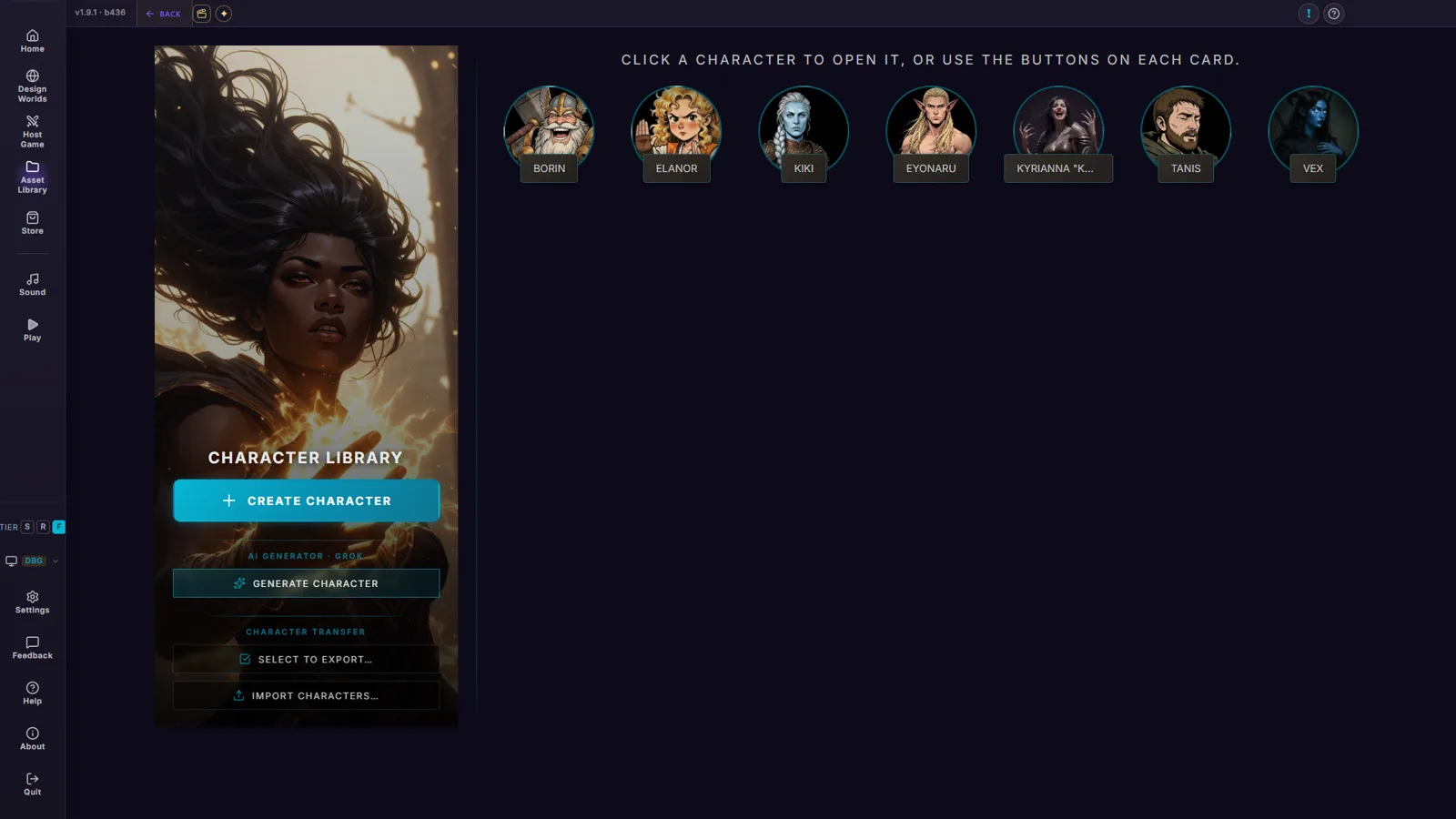
Build heroes — and bring them to the table

Your players' characters live in the Characters library: stats, portrait and token in one tidy card. Build a party from them, and when you launch a session that party turns up ready — sheets, tokens and all.

  1. Open Characters and create a hero — stats, portrait, token.
  2. Group your heroes into a party.
  3. Launch a session with that party selected.
  4. Their tokens are ready to drag onto the map.

Build the Fellowship once; summon them every session.

▶ Open in DungeonRig
Your heroes in the Characters library
6

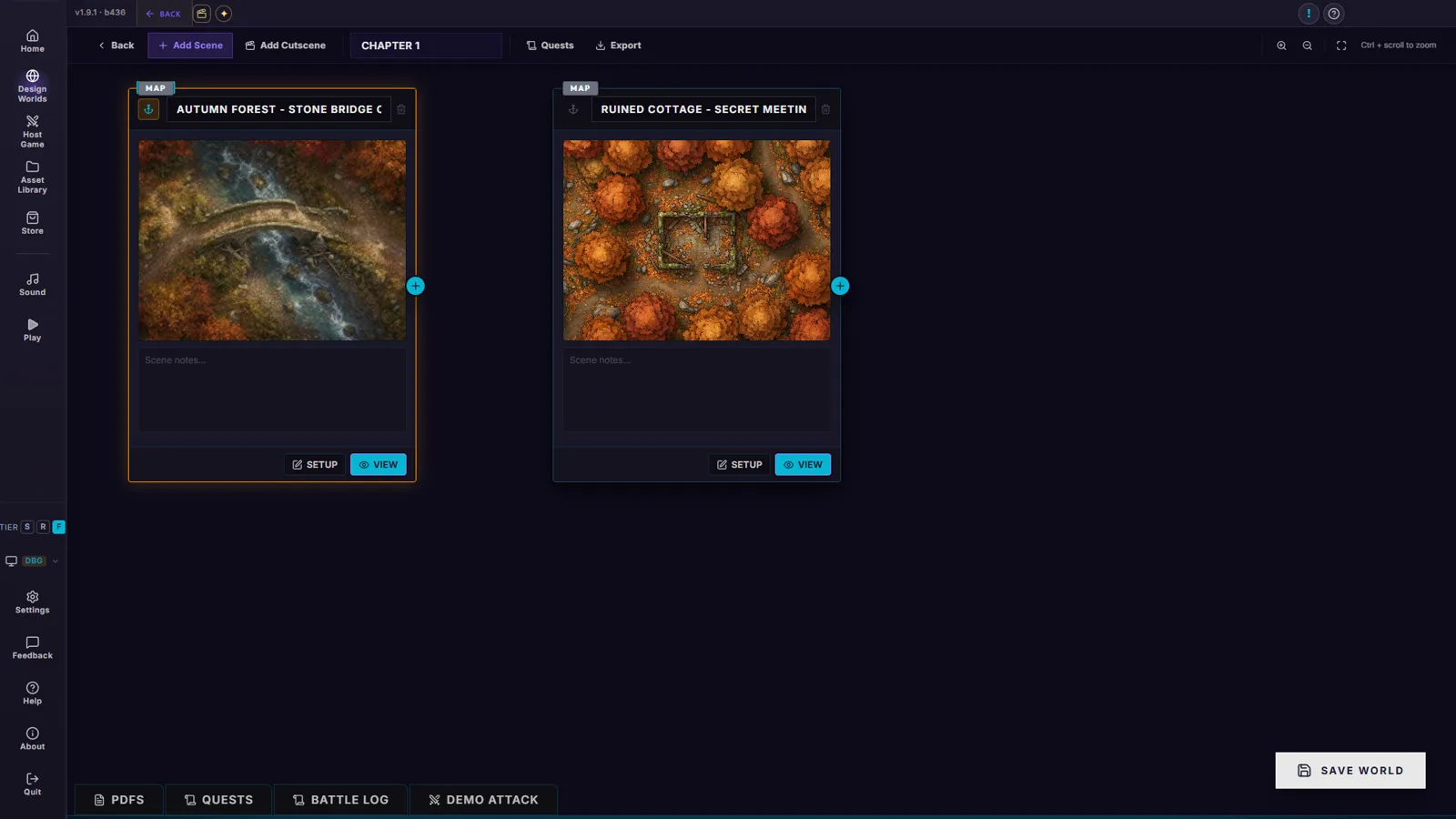
Write your world — and narrate it

The World Builder is your campaign bible — locations, factions, NPCs and lore, all linked so nothing slips between sessions. When a big beat lands, the Narration tools let you deliver set-piece prose at the table, in your own voice or an AI one.

  1. Open the World Builder and add locations, lore and story nodes.
  2. Link them so the story flows the way you imagine it.
  3. Write a narration beat for a key moment.
  4. Play it at the table when the scene calls for it.

Your prep and your performance, living in the same place.

▶ Open in DungeonRig
Your worlds — create, import and build
7

Make it yours — Settings

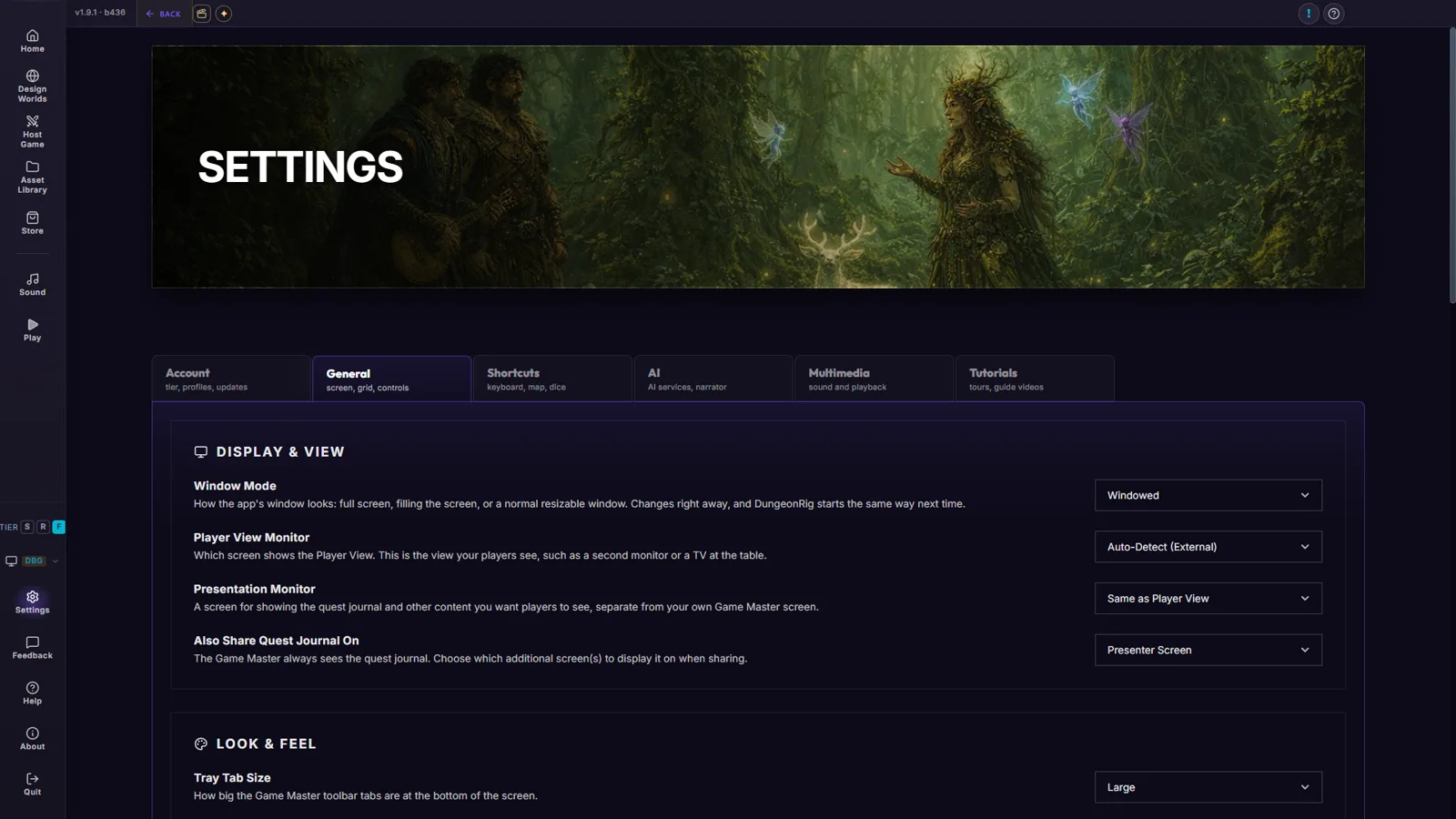
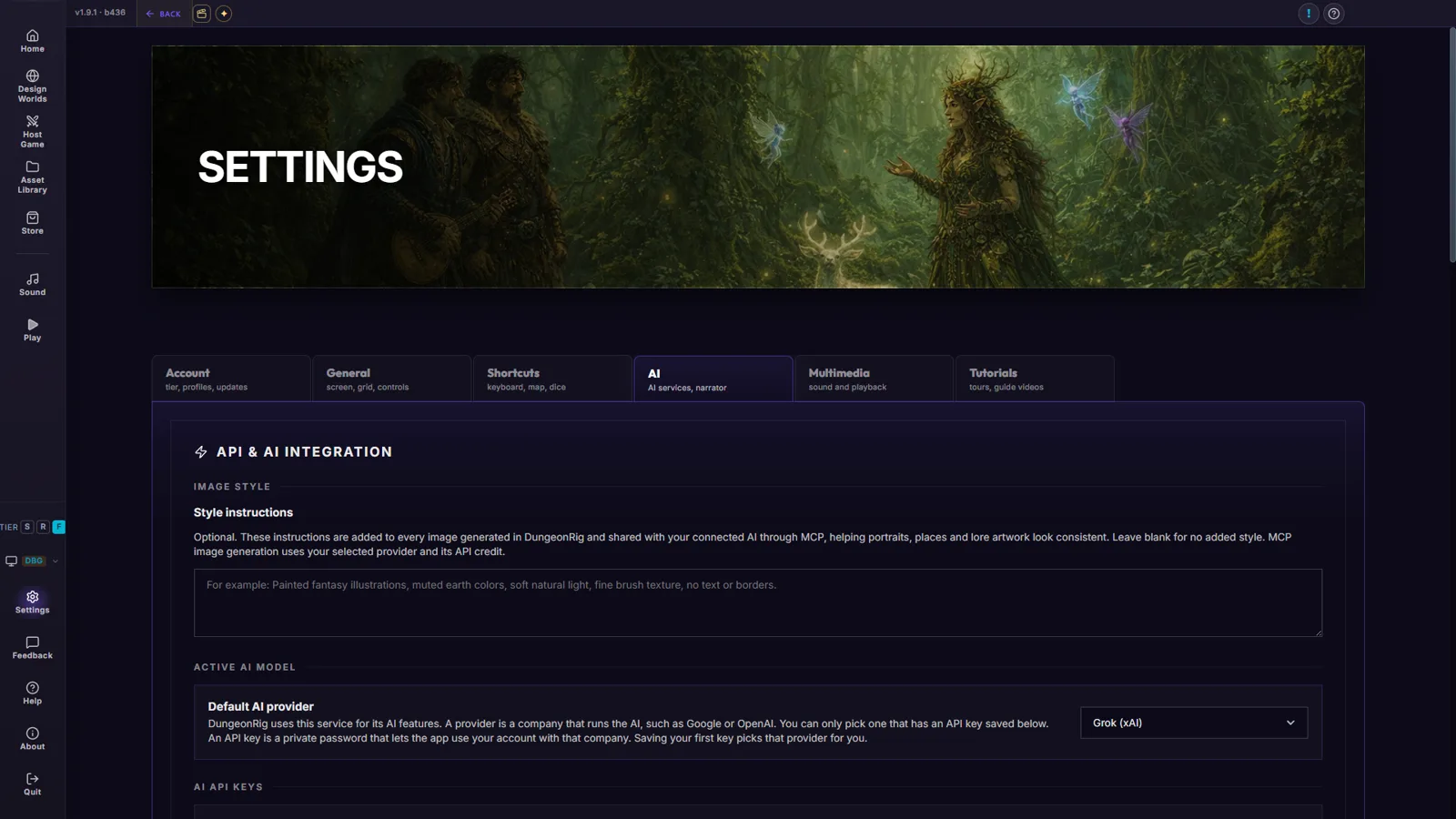
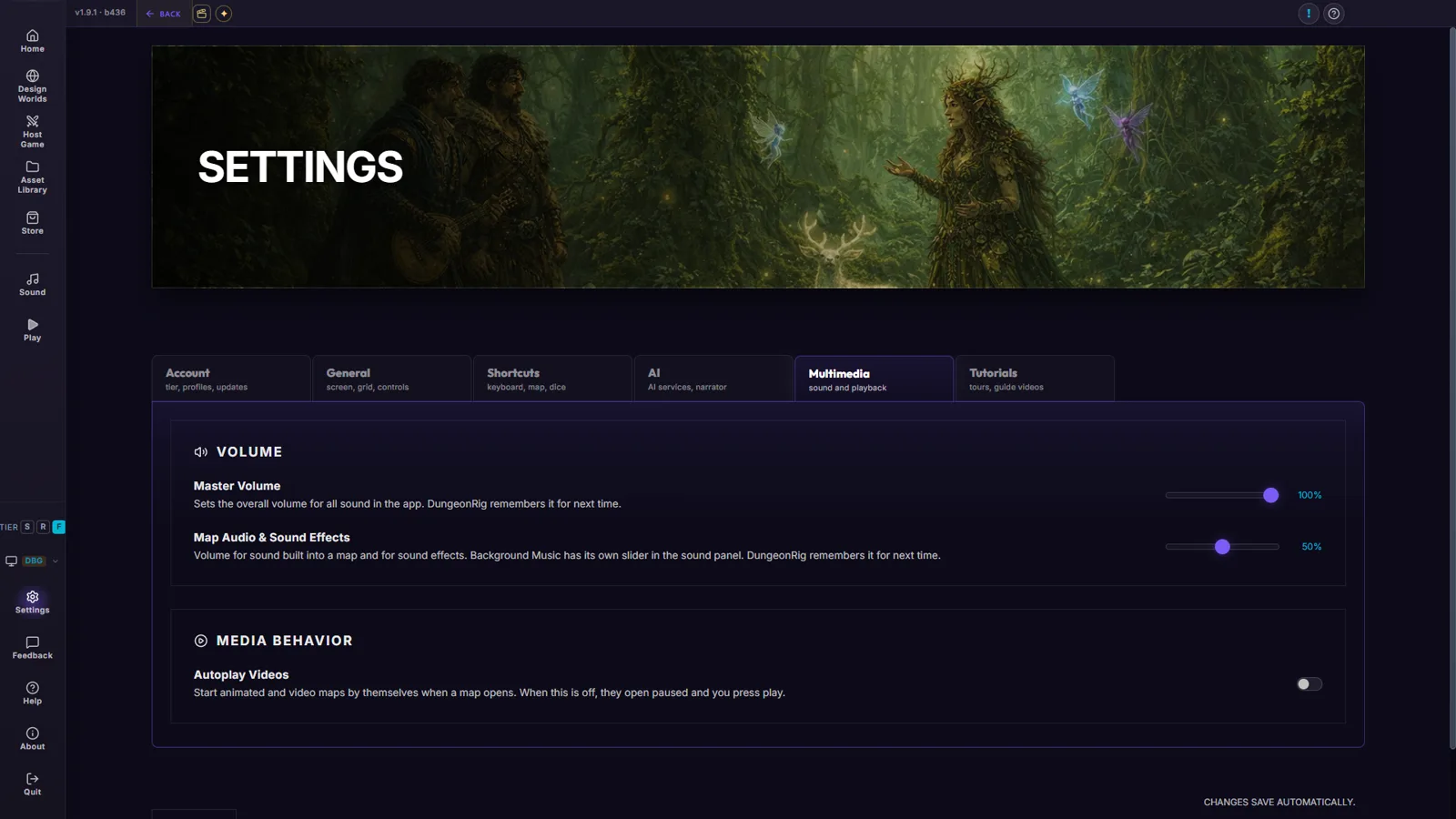
Tune DungeonRig once and forget it. General covers screens, grid and controls. AI is where you paste your own provider key (it stays on your machine). Multimedia sets the volumes and how videos play. Tutorials lets you rerun any tour or video.

  1. Open Settings → General for your screens, grid and controls.
  2. In AI, add your provider key, test it and pick a default provider.
  3. In Multimedia, set the volumes and whether map videos autoplay.
  4. Set it once; it just works from then on.

A few minutes here saves you fiddling for the rest of the campaign.

▶ Open in DungeonRig
Settings — General
Settings — General
Settings — AI providers
Settings — Multimedia
8

Advanced maps — walls, lights & doors (the Map Forge)

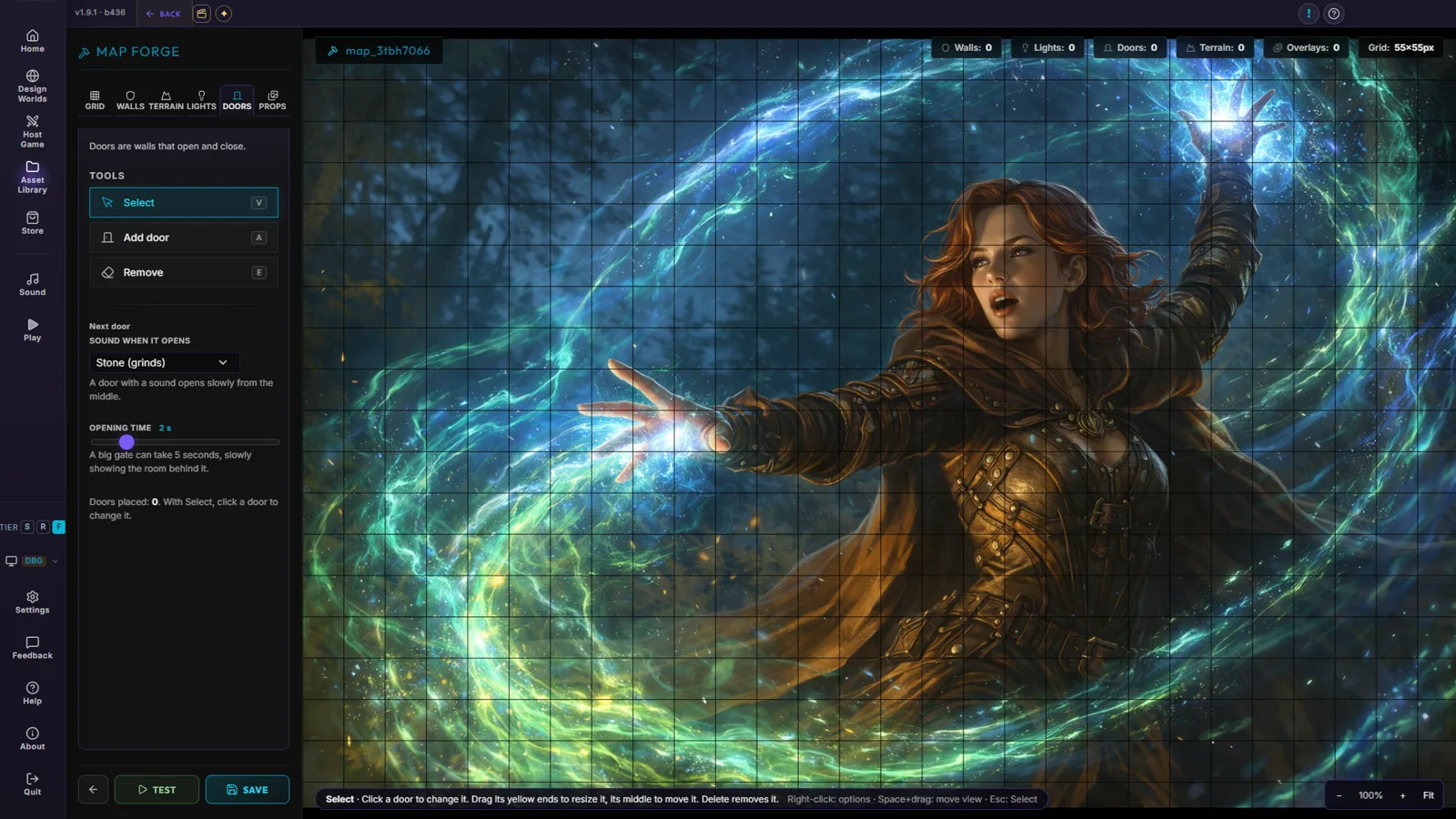
The Forge turns a flat image into a map that sees. Paint walls and they block line of sight. Drop lights and they cast a real glow. Place doors you can swing open mid-game, and watch vision update the instant they move. Do it once, and every session on that map just works.

  1. Open a map in the Map Forge with its hammer button.
  2. Draw walls on the Walls tab — they block sight, movement and light.
  3. Add map lights on the Lights tab and doors on the Doors tab; pick stone, wood or bronze for the sound a door makes.
  4. Save, then Test the map in play. Your changes stay with the map for good.

The difference between a picture of a dungeon and a dungeon you can explore.

▶ Open in DungeonRig
The Map Forge — grid, walls, terrain, lights, doors and props
9

Your libraries — local and portable

Everything you make or import is yours: it sits on your own machine, in your own libraries, organised into groups. No cloud lock-in, no DRM on your content. Export a whole campaign — maps, tokens, audio and all — to a single file, and carry it anywhere.

  1. Open the Asset Library to see maps, tokens and audio in groups.
  2. Organise them however you like with folders.
  3. Export a campaign to one .dungeonrig file.
  4. Import it on any other machine — it’s all yours.

Your worlds belong to you, not to a server you’re renting.

▶ Open in DungeonRig
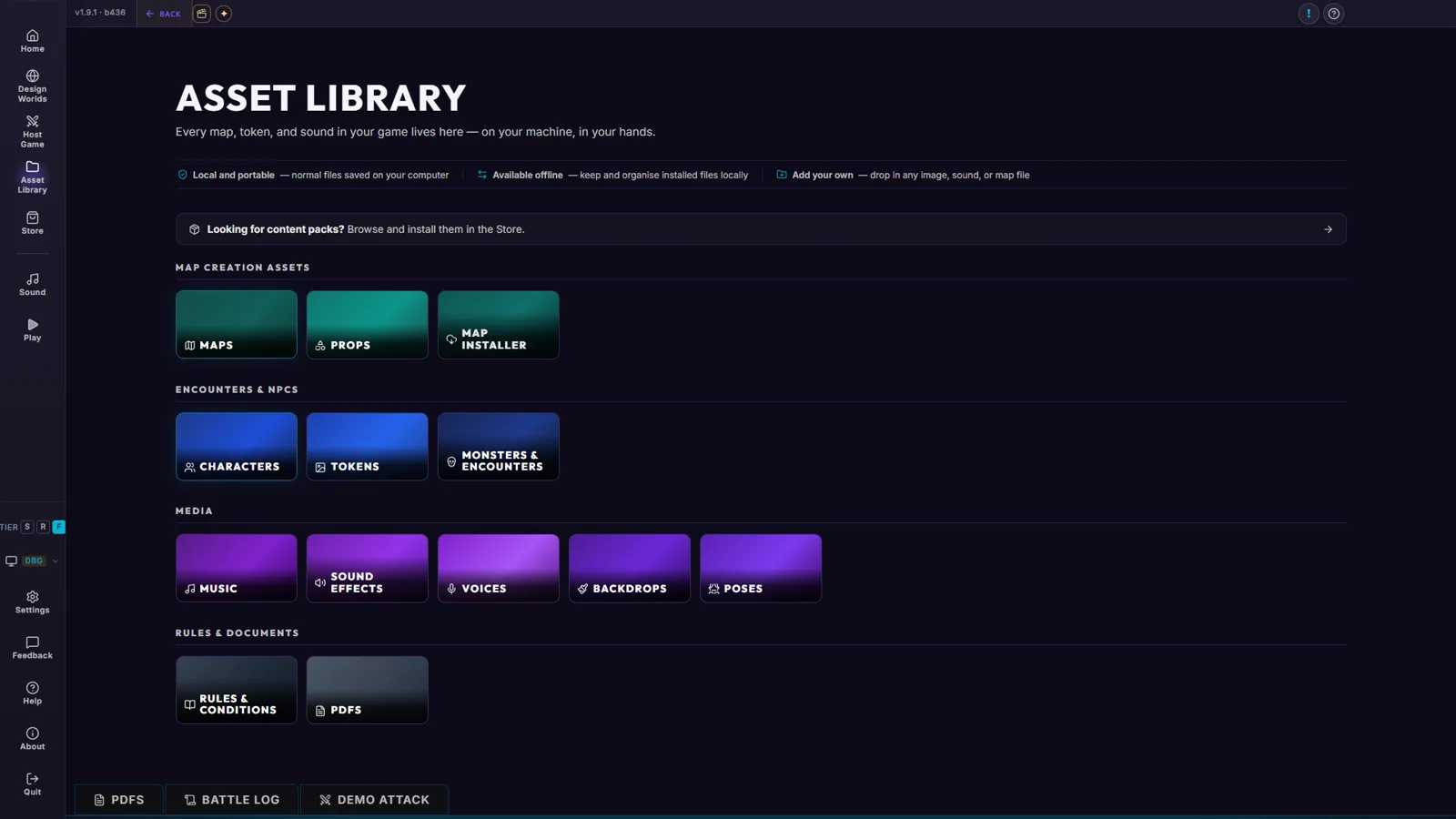
The Asset Library — every kind of content, on your own machine

The "how do I…?" list

Start here

Getting started

What is DungeonRig?

DungeonRig is a local-first tabletop RPG toolkit where you build worlds, manage assets, run tactical maps, and host live sessions — all from the Home start page.

  1. Open DungeonRig to land on the Home start page.
  2. Read the welcome card — it tells you what is ready and offers a one-minute tour.
  3. Use the left rail to explore Design Worlds, Host Game, Asset Library and the Store.
  4. Click Help in the left rail any time for a guided walkthrough of the page you are on.
▶ Open in DungeonRig

Can I try DungeonRig before buying?

Yes. Start with the Starter maps and token library, without an account for local play. Each Starter encounter allows up to 2 player characters and 3 monsters; your own map and token imports are unlimited.

  1. Download and install DungeonRig for Windows.
  2. Open the in-app Store and download the starter packs you want.
  3. Import a map or open one from your library.
  4. Register in the app if you want to host players online. The same encounter limits apply until you activate Founder.
▶ Open in DungeonRig

What is the Registered tier?

Verify your email to enable online hosting and all current and future non-exclusive maps. All tokens are free for everyone, including unregistered users. Exclusive map packs may be sold separately to registered users.

  1. Open the registration option in DungeonRig.
  2. Enter your email and complete verification.
  3. Browse the library and check each pack's access requirements before downloading.
  4. Download the starter map pack from the in-app Store without registration.
  5. Registered-free encounters support up to 2 player characters and 3 monsters.

Do I pay a subscription?

No — the US$19.99 Founder licence is a one-time purchase for the locally installed core app, with no desktop subscription.

  1. Open the About page from the left rail.
  2. Read the Consumer Rights, Refunds & Purchases terms.
  3. US$19.99 is the total price. No additional tax is added at checkout.
  4. All current and future DungeonRig library assets published by Red Autumn Software AS are included, including all tokens and maps forever and exclusive map packs. Adventures are separate: selected Founder-included adventures are included, while others may be sold separately.
  5. Optional non-library add-ons and server-dependent services are governed by the current purchase terms.
▶ Open in DungeonRig

Do my players have to pay?

No — only the Game Master needs DungeonRig; players join remotely through their web browser at no cost.

  1. As the GM, open Host Game, pick your campaign and go to the Remote step.
  2. Sign in or register for a free online account if asked (Founders too), then click Open Remote Room.
  3. Share the room link or room code with your players.
  4. Players open the link in a browser and join — no install or purchase required.

What are the three ways to play?

Run a session on your own screen, show the Player View on a TV or second monitor at the table, or host remote players who join from a browser.

  1. Open Host Game and build your session through the Adventure, Party and Remote steps.
  2. For in-person play, run the map on your screen or put the Player View on a second monitor (Settings → General chooses which screen).
  3. For remote players, click Open Remote Room on the Remote step and share the room code.
  4. On the Launch step choose Open Session Lobby, then Launch Session when everyone is ready.
▶ Open in DungeonRig

How do I find my way around?

The left navigation rail is your map of the app — Home, Design Worlds, Host Game, Asset Library, Store, Sound and Settings are always one click away.

  1. Look at the icon rail down the left edge of the window.
  2. Click Home for the start page, Design Worlds to build, or Host Game to run a session.
  3. Open Asset Library for maps, tokens, music and PDFs, and the Store for ready-made packs.
  4. Use the bottom of the rail for Settings, Feedback, Help and About.
▶ Open in DungeonRig

Is there help inside the app?

Yes — Help opens one menu with tours for the page you are on, a searchable catalog of every tour, and the tutorial videos. Tours talk you through each step.

  1. Click Help in the left rail (or the question-mark button in the title bar).
  2. Pick a tour under For this page or Start here, search for a topic, or open Browse all tours.
  3. Open Videos in the same menu to rewatch a tutorial clip.
  4. Settings → Tutorials resets the videos so they pop up again like on a fresh install.
▶ Open in DungeonRig

How do updates work?

The Windows launcher installs DungeonRig and manages game updates separately from your personal data.

  1. Open DungeonRig through the Windows launcher.
  2. Follow any download or update prompts shown by the launcher.
  3. Your worlds, campaigns, maps, notes and library are stored separately from the game installation.
  4. Keep backups of important worlds. The website download page has installation help.

What platforms are supported?

The game master needs Windows 10 or 11, 64-bit. The desktop app is not available for Mac, Linux, Android or iOS. Remote players can join from compatible modern browsers on those devices.

  1. Install and run DungeonRig on a Windows computer as the game master.
  2. Register in the app to host online, then open the Remote Lobby.
  3. Share the lobby link with your players.
  4. Remote players need an up-to-date compatible browser and internet access, with no player app or account required.

What about my privacy?

DungeonRig is local-first. You can turn off its optional anonymous launch check-in under Settings, General. Online hosting, registration, purchases and other online features also use network services; see the privacy policy for details.

  1. Open Settings from the left rail and stay on the General tab.
  2. Scroll to the Send Anonymous Usage Data toggle.
  3. The check-in includes an anonymous install identifier, version, platform, licence tier, launch count, approximate active time, how often Create free account and Get Founder were clicked, and country. It does not include your campaign content.
  4. Toggle it off if you prefer not to send the check-in.
▶ Open in DungeonRig

Setting up

Worlds & campaigns

How do I create a campaign?

A campaign is your play group, created and run from the Host Game view's four-step wizard.

  1. Open Host Game from the left rail.
  2. Click New Campaign in the Your Campaigns panel.
  3. Name your campaign and confirm with Create New Campaign.
  4. With the campaign selected, step through the Adventure, Party, Remote and Launch tabs.
  5. On the Launch tab choose Open Session Lobby, then Launch Session when everyone is ready.
▶ Open in DungeonRig

How do I build a party?

You assemble tonight's party on the Party step of the Host Game wizard by toggling which characters are in.

  1. Open Host Game and select your campaign.
  2. Click the Party tab (step 2) in the wizard.
  3. Click a character token to toggle them in or out of the session party.
  4. Click Create new to add a brand-new character if someone is missing.
  5. Continue to the Launch tab when your adventurers are selected.
▶ Open in DungeonRig

What is the World Builder?

The World Builder (Design Worlds) is where you create and manage Adventure Books, each holding chapters of map and narration scenes.

  1. Open Design Worlds from the left rail.
  2. In the Manage Worlds panel, click Create New World to start an Adventure Book.
  3. Click a world tile to open it and edit its cover, title, description and level range.
  4. Open the Adventure Book chapters below to author scene graphs.
  5. Use the Levels badge to set the level range, and Export world to package the adventure.
▶ Open in DungeonRig

How do I add locations and lore?

Each world’s Adventure Book card holds lore decks — factions, locations, NPCs and quests — for reference lore.

  1. Open Design Worlds and click a world tile to open it.
  2. Open the Adventure Book card; it expands to show the lore decks.
  3. Pick a deck (factions, locations, NPCs or quests) and add an entry.
  4. Give the entry a title and content in the editor, and optionally pick a backdrop image.
  5. Save the entry before you close the editor.
▶ Open in DungeonRig

How do I build an adventure?

An adventure is built chapter by chapter on the story board, where you add scene nodes for maps and narration.

  1. Open Design Worlds and open your world's Adventure Book.
  2. Open a chapter to enter its node-graph story board.
  3. Drag a card’s + connector onto the board and pick a scene type — it is already connected.
  4. On a map node, click Setup to place the map, tokens, fog, lighting and encounter.
  5. Drag nodes around the canvas to organise the flow of your adventure.
▶ Open in DungeonRig

How do I link story nodes?

Nodes are linked by dragging from a node's plus connector to a spot on the canvas, creating a connected child scene.

  1. Open a chapter's story board in Design Worlds.
  2. Find the + connector on the edge of a node.
  3. Drag from that + out onto the canvas to spawn a linked scene.
  4. Set a starting scene with the anchor button on the node you want as the root.
  5. During play you can jump between the scenes you linked together.
▶ Open in DungeonRig

How do encounters fit in?

Encounters live inside a map node's setup, where monsters added to initiative appear as a preview on the node.

  1. Open a chapter's story board and find a map scene node.
  2. Click Setup on the node to open the manual scene editor.
  3. Place your map, tokens, fog and lighting, then add monsters to the encounter.
  4. Save the scene state so the encounter is stored on that node.
  5. Back on the board, the node shows monster bubbles with names and HP.
▶ Open in DungeonRig

Can I import a world?

Yes — you can import a packaged world archive from the Manage Worlds panel in Design Worlds.

  1. Open Design Worlds from the left rail.
  2. In the Manage Worlds panel, click Import World.
  3. Choose the exported world archive file in the system dialog.
  4. Wait for the import to finish; the imported world appears in your gallery.
  5. Click the new world tile to open and verify it.
▶ Open in DungeonRig

How do I export or bundle a world?

Open a world and use Export world to package it as a portable archive with all its maps, tokens and audio.

  1. Open Design Worlds and click a world tile to open it.
  2. Click Export world in the world header to open the Export World Package dialog.
  3. Fill in the export metadata form and confirm.
  4. Watch the export progress as assets are scanned, packed and written to a ZIP.
  5. Review the manifest report when the export completes.
▶ Open in DungeonRig

Can I archive old worlds?

Yes — deleting a world archives it (with type-to-confirm), and you can restore archived worlds from the Archive dialog.

  1. Open Design Worlds from the left rail.
  2. Hover a world tile and click its trash icon, or open the world and click Delete world.
  3. Type the world name to confirm, then click Archive World.
  4. To restore later, click Archive in the Manage Worlds panel (or press Ctrl+Z on the Worlds page).
  5. Pick an archived world to bring it back.
▶ Open in DungeonRig

Setting up

Maps & the Library

What is the Map Library?

The Map Library is where you import, organise, tag and load every battle map before sending it to a session.

  1. Open the Asset Library hub from the left rail.
  2. Click the Maps card to open the Map Library.
  3. Use the left-hand folders to browse maps and the top toolbar to import new ones.
  4. Each card has buttons: the eye previews the artwork, the hammer opens the Map Forge, the play button starts a quick session, and Join a picture builds a bigger map.
▶ Open in DungeonRig

How do I import an image map?

Import a still image map straight into the currently selected folder using the Import Maps button.

  1. Open the Map Library and select the folder you want the map to land in.
  2. Click Import Maps in the top toolbar.
  3. Choose one or more image files in the file picker.
  4. The maps appear as cards in the active folder with a default grid ready to tune.
▶ Open in DungeonRig

Can I use animated map videos?

Yes — import looping video files as animated maps, and large videos can be transcoded to 1080p to save disk space.

  1. Open the Map Library and pick a group.
  2. Click Import Video in the top toolbar and choose your video file.
  3. If a video is large, use the Reduce button in the footer banner to transcode it to 1080p.
  4. Click the video map card to load it into the session like any other map.
▶ Open in DungeonRig

Can I import from YouTube?

Yes. Import a YouTube battle map link for playback at the GM's table. Remote players see a still image of the map, not the live YouTube video. Playback needs internet access and access to the chosen video.

  1. Open the Map Library and select a group.
  2. Click Import YouTube in the top toolbar.
  3. Paste the YouTube video URL into the dialog and confirm.
  4. The video is added as a map card; if it already exists you can choose to replace it.
▶ Open in DungeonRig

What is Play this map now?

The play button on a map card starts a quick session on that map — name it, and DungeonRig makes a world and a campaign for you behind the scenes.

  1. Open the Map Library and hover a map card.
  2. Click the play button (Play this map now).
  3. Give the session a name and click Start Session.
  4. The map opens on the live table; add monsters from the Deck and drag your heroes’ portraits onto the map.
▶ Open in DungeonRig

Can I import prepared VTT maps?

Yes — the Import VTT button brings in Universal VTT maps so their walls, lights, doors and grid carry over.

  1. Open the Map Library and select a group.
  2. Click Import VTT in the top toolbar.
  3. Choose your Universal VTT (.uvtt/.dd2vtt) file in the picker.
  4. The map imports with its grid, walls, lights and doors in place, ready to refine in the Map Forge.
▶ Open in DungeonRig

How do I organise maps?

Maps live in named folders on the left of the Map Library, and you can create folders and drag maps between them.

  1. Open the Map Library; the General folder holds maps by default, and installed packs get their own.
  2. Add a new folder from the sidebar and give it a name.
  3. Select one or more map cards, then drag them onto a folder to move them.
  4. Switch folders by clicking them in the left sidebar.
▶ Open in DungeonRig

Can I tag and search maps?

Yes — add tags to maps individually or in bulk and use the search box to filter the library.

  1. Open the Map Library and type in the Search maps box to filter by name.
  2. Add tags directly on a map card to label it.
  3. Select multiple maps, then click the Tag button in the selection bar to tag them all at once.
  4. Reuse existing tags from the autocomplete suggestions for consistency.
▶ Open in DungeonRig

Can AI label my maps?

Yes — with an AI provider configured, the AI Labeler can name and describe your image maps, one at a time or all at once.

  1. Configure an AI provider and API key in Settings so the AI Labeler is enabled.
  2. Open the Map Library and find the AI Labeler in the toolbar.
  3. Use Manual Label to step through and accept a name, description and tags per map.
  4. Use Auto All to label every unlabelled image map in the current group automatically.
▶ Open in DungeonRig

How do I set up the grid?

Each map gets a default grid on import, which you fine-tune in the Map Forge Grid tab by adjusting cell size and offset.

  1. Open the map's card and click its hammer button to open the Map Forge.
  2. Select the Grid tab in the Forge toolbar.
  3. Drag the Cell Width (X) and Cell Height (Y) sliders until the grid lines up with the map.
  4. Use Horizontal Shift and Vertical Shift to align the grid origin, then Save.
▶ Open in DungeonRig

What are map packs?

Map packs are ready-made map collections you install from the Store; they land in your Map Library in a folder of their own.

  1. Open Store from the left rail.
  2. Browse the catalogue — the starter packs are free, Registered and Founder unlock more.
  3. Click Install; the pack downloads into your library.
  4. Installed maps appear in a folder named after the pack and glow as new.
▶ Open in DungeonRig

How do I load a map into a session?

Try a map with Map Forge → Test, start a quick session with Play this map now, or put it in a scene of your world and launch that from Host Game.

  1. Open the Map Library and find the map.
  2. Click its hammer, then Test (save first if you changed anything), to try it on the live table with all the tools.
  3. Or click the play button for Play this map now — a quick session with its own campaign.
  4. For a campaign, add the map to a scene in Design Worlds and launch the session from Host Game.
▶ Open in DungeonRig

Can I join several pictures into one map?

Yes — Join a picture builds one bigger map from pictures that fit edge to edge, and smooths the seams away. Map packs made to connect join in seconds.

  1. In the Map Library, click Join a picture on any map card.
  2. Pick a picture that fits a free edge — ones from the same pack come first; Show more adds the rest.
  3. Click or drag it onto a glowing edge; keep adding pictures. The red sign takes one off, Ctrl+Z undoes.
  4. Leave Smooth the joins on so the seams disappear, then Save as new map. The original and its scenes are untouched.
▶ Open in DungeonRig

Setting up

The Map Forge

What is the Map Forge?

The Map Forge is a full-screen editor for the grid, walls, hampered terrain, lights, doors and props that make a map work at the table.

  1. Open a map's card in the Map Library and click its hammer button.
  2. Switch between the Grid, Walls, Terrain, Lights, Doors and Props tabs in the toolbar.
  3. Draw or place elements directly on the map canvas with the tab's tools.
  4. Save, then use Test to try the map on the live table.
▶ Open in DungeonRig

How do I draw walls?

On the Walls tab you trace walls and barriers around the map’s artwork; they block sight, movement and light.

  1. Open the Map Forge and select the Walls tab.
  2. Pick a wall tool: Fill squares paints whole squares like solid rock, Along grid lines draws thin walls between squares, and Free lines draws any shape point by point.
  3. Draw along the walls in the artwork. Fill squares and Along grid lines follow the grid.
  4. Hold Ctrl or Shift to erase, or pick Erase and drag over a wall.
  5. Closed doors also block sight — add those on the Doors tab, then Save.
▶ Open in DungeonRig

How do I place lights?

On the Lights tab you add map lights that glow in the dark and stop at walls, with their own reach, brightness and colour.

  1. Open the Map Forge and select the Lights tab.
  2. Pick the Add light tool and set Reach, Brightness and Color.
  3. Click on the map to add a light with those settings.
  4. Pick Remove and click a light to take it away, then Save. In play, Light size in Light and ambience scales every light at once.
▶ Open in DungeonRig

How do I add doors?

On the Doors tab you put doors on grid lines. A closed door blocks sight and movement; an open one lets light and players through.

  1. Open the Map Forge and select the Doors tab, then pick Add door (A).
  2. Click a line between two squares to put a door there — or drag across the doorway if the art’s door sits between grid lines.
  3. Choose Stone, Wood or Bronze for how it slides open and sounds, or None to open at once; tick Starts open if needed.
  4. Save. In play, click a door on the map to open or close it.
▶ Open in DungeonRig

How do I set the grid in the Forge?

The Grid tab in the Map Forge lets you align the grid to the map by adjusting cell width and height plus horizontal and vertical offset.

  1. Open the Map Forge and select the Grid tab.
  2. Adjust the Cell Width (X) and Cell Height (Y) sliders until cells match the map's squares.
  3. Nudge Horizontal Shift and Vertical Shift to line the grid up with the artwork.
  4. Check the live cell count in the info block, then Save.
▶ Open in DungeonRig

What is hampered terrain?

The Terrain tab marks ground that costs double movement — rubble, water, thick undergrowth.

  1. Open the Map Forge and select the Terrain tab.
  2. Pick Paint Hampered and paint the slow ground over the artwork (Erase Hampered takes it away).
  3. Save. Tokens that cross it spend twice the movement.
▶ Open in DungeonRig

What are props?

Props are images you place on a map and show or hide during play — floors, canopies, covers. They do not create walls.

  1. Open the Map Forge and select the Props tab.
  2. Place a prop from your Props library on the map.
  3. In play, show or hide it when the moment comes.
▶ Open in DungeonRig

Can I check line of sight?

Yes — Test opens the map on the live table with the Forge’s walls, so you can place a token and see exactly what it sees.

  1. Save your changes, then click Test in the Forge action bar.
  2. Click the flame button and turn on Line of sight in Light and ambience.
  3. Place a token and move it around a wall.
  4. Click Back to return to the Forge and adjust.
▶ Open in DungeonRig

How is it saved?

Click Save in the Map Forge action bar to write the grid, walls, terrain, lights, doors and props back onto the map.

  1. Make your changes across the tabs.
  2. Click Save to keep everything on the map; you stay in the Forge and can keep editing.
  3. Use Back to return to the Map Library, or the green Back to session button during a game.
▶ Open in DungeonRig

Setting up

Tokens

What is the Token Library?

The Token Library is where you upload, AI-generate, label and organise the creature and character art used as map tokens during play.

  1. Open the left rail and choose Asset Library.
  2. Click the Tokens card to open the Token Library.
  3. Browse the token cards, and use the folders in the left rail to switch categories.
  4. Use the Search tokens box to find a specific token by name.
▶ Open in DungeonRig

How do I import token art?

You import token art by choosing an image from your computer, then cropping it to a clean circular token.

  1. Open the Token Library and select the folder you want the token in.
  2. Click Import Tokens and pick an image file.
  3. In the crop window, frame the creature, then confirm to save the cropped token.
  4. Hover the new card for the edit and delete tools to give it a name and description.
▶ Open in DungeonRig

Can AI make tokens?

Yes — with AI enabled, the Token Generator creates a token portrait from a text prompt and saves it auto-labelled into the current folder.

  1. Open Settings > AI and configure a supported image provider: Google Gemini, OpenAI or Grok. Use your own provider API key; provider charges may apply.
  2. Open the Token Library and find the AI Generator panel.
  3. Click Token Generator and describe the creature you want.
  4. Generate, then save — the token is added to the current folder with a label from your prompt.
  5. You can also use the AI labeller to auto-name existing tokens.
▶ Open in DungeonRig

How do token sizes work?

A token's size follows the standard creature categories (Tiny to Gargantuan), which determines how many grid squares it occupies.

  1. Open the creature's stat sheet (for example in the Monster editor) and find the Size field.
  2. Choose a category from Tiny, Small, Medium, Large, Huge or Gargantuan.
  3. Add the creature from the Deck so its card carries that size.
  4. Drag its portrait onto the map — it snaps to the grid and covers squares to match its size.
▶ Open in DungeonRig

How do I organise tokens?

You organise tokens into named folders and move them between folders by selecting cards and dragging.

  1. Open the Token Library and click New Folder to create a category.
  2. Drag a token card onto a folder to move it there.
  3. Hover a card for the edit and delete tools.
▶ Open in DungeonRig

How do I place a token?

Tokens reach the battle map from combat cards — add the creature in the Deck, then drag the portrait off its card onto the map.

  1. During a live session, click Deck and add the character or monster.
  2. Grab the portrait on its card and drag it onto the battle map.
  3. Drop it where you want — it snaps to the grid based on its size.
  4. Drag the token again to move it to a new square.
▶ Open in DungeonRig

Can players control their tokens?

Yes — in a remote session each player claims a party character, and only the claiming player controls that character's token.

  1. As Game Master, pick the party on the Party step so those characters appear to players.
  2. Have each player join the room and claim a character.
  3. Each player picks an unclaimed party member (they can't take one already claimed).
  4. Once claimed, that player controls their character; the claim shows as a colour ring.
▶ Open in DungeonRig

Setting up

Characters & monsters

What is the Characters library?

Your heroes live here — each one a card with stats, a portrait and a map token, ready to drop into a party.

  1. In the left rail, open Asset Library.
  2. Click the Characters card.
  3. Browse your heroes — click any to edit, or use Create Character to add one.
▶ Open in DungeonRig

How do I set up a character?

Build a hero from ability scores to token in one editor — sensible defaults mean you only fill what you care about.

  1. Open Asset Library, Characters and click Create Character.
  2. Fill the basics: name, race, class, level and the six ability scores.
  3. Set hit points, armour class and speed (defaults are filled in for you).
  4. Click the Token and Portrait slots to pick art from your library or upload your own.
  5. Click Save — the hero appears in the library, ready for a party.
▶ Open in DungeonRig

Can AI help build a character?

Yes — generate a complete hero, sheet and token image, from a prompt or archetype.

  1. First add a provider key in Settings, AI (the button is greyed out without one).
  2. In Asset Library, Characters, click Generate Character.
  3. Pick an archetype or describe the hero you want.
  4. Review the generated sheet and token, regenerate if needed, then Save Character.
▶ Open in DungeonRig

Can I import or export characters?

Move heroes (and their art) between machines as a single file.

  1. In Asset Library, Characters, click Select to export.
  2. Tick the heroes you want — or Select all — then click Export selected and choose where to save.
  3. On the other machine, click Import characters and pick that file; your heroes appear in the grid.
▶ Open in DungeonRig

How do I add heroes to a party?

Choose which heroes come along when you launch a session — the party is part of the campaign.

  1. In the left rail, open Host Game and choose (or create) a campaign.
  2. Open the Party tab — every hero shows as a token.
  3. Click a hero to toggle them in or out; a checkmark marks who's coming, with a count of those selected.
  4. Need a new hero first? Click the Create new tile to build one without leaving the screen.
▶ Open in DungeonRig

What is the bestiary?

A library of ready-made monsters, each with a full stat block, attacks and a token.

  1. Open Asset Library, Monsters & Encounters.
  2. Search or scroll the bestiary and click a creature to open its stat block.
  3. From there you can edit it. Add it to a fight from the Deck.
▶ Open in DungeonRig

How do I create a monster?

Add your own creature with a complete stat block, attacks and token.

  1. Open Asset Library, Monsters & Encounters, then click New Monster.
  2. Set the basics: name, size, type, challenge rating, armour class and hit points.
  3. Dial in the ability scores, saving throws and any resistances or immunities.
  4. Add an attack card for each attack — name, damage dice (e.g. 2d6+3), type and range.
  5. Pick a token image, then click Save.
▶ Open in DungeonRig

Where are the stat blocks?

Every monster carries its full stat block — armour class, hit points, abilities, senses and challenge rating.

  1. Open Asset Library, Monsters & Encounters and click a creature.
  2. The editor shows AC, HP, speed, the six ability scores, saves, resistances and CR.
  3. In play, the DM sees the full block on the creature’s combat card; players never do.
▶ Open in DungeonRig

How do monster attacks work?

Attacks live on the creature as cards, so they're ready the moment its turn comes up.

  1. Open a monster in Monsters & Encounters and find the attacks section.
  2. Add a card per attack: name, damage dice, damage type and range (melee or ranged).
  3. Save; on the creature's turn you pick the attack and resolve it against a target on the map.
▶ Open in DungeonRig

How do I add monsters to a fight?

Add creatures from the Deck, then drag their portraits onto the map.

  1. With a map on the table, click Deck at the bottom right.
  2. Choose Add monster / NPC / player and pick a monster from your library (search by name).
  3. It gets a card along the bottom with its HP, AC and attacks.
  4. Drag the portrait off the card onto the map where the creature waits.
▶ Open in DungeonRig

Playing

Movement, sight & light

How do I move a token?

Drag a token across the battle map and it snaps to the grid cell you release it on, showing distance and remaining movement as you go.

  1. Click a token on the map to select it.
  2. Press and drag it to the destination cell; the feet spent versus the token's speed show while you drag.
  3. Release to drop the token, which snaps to the grid and animates into place.
  4. As DM, hold Shift while dragging to free-move past walls, occupancy and the movement budget.
▶ Open in DungeonRig

How do I measure distance?

Dragging a token shows the path length in feet and how much of its speed remains, so movement doubles as a measuring tool.

  1. Select the token you want to measure from.
  2. Begin dragging it toward the target cell.
  3. Read the feet spent and remaining movement that appear along the drag path.
  4. Release on the target cell to commit, or drag back to the origin to cancel.
▶ Open in DungeonRig

Where is step-by-step movement?

Numpad step-move walks a selected token one cell at a time along a previewed path, budgeted by its speed.

  1. Select a token on the map, or its combat card.
  2. Press a numpad direction key (1-9, except 5) to enter stepping mode; a ghost path appears.
  3. Press more numpad direction keys to extend the path one cell per press, up to the token's speed.
  4. Press Numpad Enter to commit and animate the move, or Numpad 5 / Escape to cancel.
▶ Open in DungeonRig

Snap to grid or free placement?

Tokens snap to grid cells by default, but as DM you can hold Shift while dragging to place a token freely.

  1. Drag a token normally and it snaps to the nearest grid cell on release.
  2. To override, hold Shift while dragging the token as DM.
  3. Drop it on any cell, including occupied cells or cells inside a wall.
  4. Release Shift mid-drag to return to normal grid-snapped movement.
▶ Open in DungeonRig

How does painted fog work?

The Fog of War tool brushes concealment over the map with Cover and Reveal, or hides and reveals the whole map at once.

  1. Open the Fog of War tab in the on-map tool sidebar.
  2. Pick Cover to paint fog, or Reveal to erase fog and expose an area to players.
  3. Adjust Brush Size and Tip Shape (Round or Square), then paint on the map.
  4. Use Cover All to fog the entire map or Reveal All to clear it under Global Visibility.
▶ Open in DungeonRig

How does the map reveal itself?

With Line of sight on, the map uncovers around your characters as they see it, and Remember explored areas keeps discovered ground dimly visible — no painting fog by hand.

  1. Click the flame button to open Light and ambience.
  2. Turn on Line of sight.
  3. Turn on Remember explored areas so discovered ground stays visible.
  4. Move tokens; what they see is revealed, and the players see it on their screen.
▶ Open in DungeonRig

Can I fine-tune the fog?

Fog and GM screen in Light and ambience sets how strong the fog is and lets you paint fog by hand on top of what line of sight does.

  1. Click the flame button to open Light and ambience.
  2. Open Fog and GM screen.
  3. Set the fog strength, or paint fog by hand with the Fog of War tool in the on-map toolbox.
  4. Players only ever see what you reveal.
▶ Open in DungeonRig

How does Line of sight work?

Line of sight switches on the whole system: walls block sight, and light and darkness decide what characters can see. Off, players see the whole map.

  1. Click the flame button to open Light and ambience.
  2. Turn on Line of sight.
  3. Reveal enemies when seen shows enemies only while the party sees them; Only whose turn it is shows the active character’s sight.
  4. Place a player token and walk it around a wall to check what it sees.
▶ Open in DungeonRig

What is the light system?

Light and ambience sets the scene’s light level — Daylight, Dim light or Darkness — and Light size scales every light at once. In darkness characters see by torchlight, darkvision and touch.

  1. Click the flame button to open Light and ambience.
  2. Pick Daylight, Dim light or Darkness, or fine-tune with the slider.
  3. Light size grows or shrinks every light in the scene; As in the rules gives a torch its D&D 20 ft.
  4. Map lights come from the Lights tab in the Map Forge.
▶ Open in DungeonRig

How do torches and token lights work?

What each character carries is set from their portrait in the top bar; a carried light moves with the token.

  1. Click a character’s portrait in the top bar during play.
  2. Set what it Carries — torch, lantern, nothing — and its Darkvision.
  3. With Line of sight on, the lit area moves with the token and reveals the map around it.
  4. Light size in Light and ambience scales every light in the scene at once.
▶ Open in DungeonRig

How does darkvision work?

Darkvision is a per-creature range that lets it see in darkness without a light, set on its character or monster record or from its portrait during play.

  1. Open the character or monster in its editor, or click its portrait in the top bar during play.
  2. Set the Darkvision range for that creature.
  3. With Line of sight on and the scene in darkness, that token sees out to its darkvision range even in unlit areas.
▶ Open in DungeonRig

How do doors behave in play?

A door is a wall that can open. Closed, it blocks sight and movement; open, light and players go through. Click a door on the map to open or close it.

  1. Find a door on the battle map, on the line between two squares.
  2. Click it to open or close it; the change shows on the players’ screen too.
  3. Stone, wood and bronze doors slide open slowly with their own sound; a door set to None opens at once.
  4. Doors are drawn on the Doors tab of the Map Forge.
▶ Open in DungeonRig

What are living maps?

Living maps add flowing water, lava and fire on top of a 2D map, on the GM screen and the table window. They are off by default and switched per computer. Only maps that carry effects show them, there is no effects editor in the app yet, and remote players do not see them yet.

  1. Click the flame button to open Light and ambience.
  2. Turn on New map effects.
  3. In the Living map list, switch single effects, a kind (water, lava or fire) or everything on or off, and set the quality to Off, Low or High.
  4. If a computer slows down, DungeonRig lowers the quality by itself. If WebGL is missing, the effects switch themselves off.
▶ Open in DungeonRig

What does the weather do?

Weather in Light and ambience sets the atmosphere — clear, rain, snow, embers, magic or fog — and Dynamic rain builds a storm with cloud shadows, thunder and lightning over the map.

  1. Click the flame button to open Light and ambience.
  2. Pick a weather under Atmosphere.
  3. Turn on Dynamic rain for a storm that rolls in over the map, with its own sound.
  4. Scene FX in the on-map toolbox adds colour filters on top.
▶ Open in DungeonRig
Playing

Combat & dice

How do combat cards work?

Combat runs from the Deck and the cards along the bottom of the map. Every combatant gets a card with hit points, armour class, states and attacks; the active card leads the turn.

  1. Click Deck (the card icon at the bottom right) to add combatants and roll initiative.
  2. Cards appear along the bottom of the map; the active one is highlighted.
  3. Open a card for hit points, states, attacks and death saves.
  4. Next turn on the active card moves play on; Show on table slides the table to that creature.
▶ Open in DungeonRig

How do I add combatants?

The Deck adds a monster or NPC from your library, or the players in the session, each as a card.

  1. Click Deck at the bottom right of the map.
  2. Choose Add monster / NPC / player and search your library by name, or add the players to the session.
  3. Each combatant gets a card at the bottom of the map with its token ready to drag out.
  4. Roll initiative to order them.
▶ Open in DungeonRig

How do I advance turns?

Next turn on the active card passes play to the next combatant; the round advances when the order wraps.

  1. Click Next turn on the active card.
  2. When the order wraps past the last card, the round counter goes up.
  3. Drag a card to a new place in the line to change the order, or delay the active card.
  4. Follow the turn on the active card makes the table slide to whoever is up.
▶ Open in DungeonRig

How do states work?

States are conditions you attach from a card, shown on the card and as pips on the token, with a round counter where the rules give one.

  1. Open a combatant’s card and click Add or remove conditions.
  2. Pick a state; saves that belong to it are offered when they come up.
  3. Active states show on the card and on the token.
  4. Downed player characters become Unconscious and roll death saves from the card; Revive brings one back with 1 hit point.
▶ Open in DungeonRig

Do states count down?

Yes — states with a duration tick down each round and clear by themselves when they run out.

  1. Apply a state with a duration to a combatant.
  2. Advance turns and watch the counter drop each round.
  3. It clears when it reaches zero; remove it earlier from the card if the rules say so.
▶ Open in DungeonRig

How do I make an attack?

Target, weapon, roll. Start the attack from the active card, click a target on the map, pick an attack card, and the damage comes off by itself.

  1. On the active card, click Attack, then click the target token on the map.
  2. Pick an attack from the Choose attack list (your creature’s attacks or the SRD catalogue).
  3. Roll — the 3D dice tumble on the table.
  4. On a hit the damage comes off the target automatically; concentration saves are offered where they apply.
▶ Open in DungeonRig

Does it handle advantage and cover?

Yes — before you roll you can add advantage, disadvantage and cover, and the attack roll adjusts accordingly.

  1. Start an attack and pick an attack card.
  2. Toggle Advantage (roll two d20, keep the higher) or Disadvantage (keep the lower).
  3. Add cover or heavy cover when the target has it.
  4. Roll; the kept d20 plus modifiers resolves the hit.
▶ Open in DungeonRig

What about crits and resistances?

A natural 20 crits and doubles damage dice, while the target's resistances, immunities and vulnerabilities apply per damage type automatically.

  1. Roll an attack from a card.
  2. A natural 20 is a crit and rolls doubled damage dice; a natural 1 is a miss.
  3. Damage is then scaled by the target's resistances (halved, rounded once), vulnerabilities (doubled) and immunities (zero).
  4. Read the final outcome in the Battle log at the bottom of the screen.
▶ Open in DungeonRig

Where are the spells?

All 339 SRD 5.2.1 spells are in the Spell Library, and each character can have a spellbook with spell slots and prepared spells. The GM runs the casting: a few direct-damage spells open the roll panel, and other effects are resolved by the GM. Remote players have no spell controls yet.

  1. Open Asset Library and click the Spell Library card.
  2. Open a character’s spellbook to set slots and which spells are prepared.
  3. During play, use Cast spell on the initiative card or the token menu and pick a target; previews show the target and the area.
  4. Direct-damage spells open the roll panel. For other spells, apply the effect yourself, as you would at a real table.
▶ Open in DungeonRig

How do I roll dice?

The dice bar at the top lets you build a hand of dice, add a modifier and roll in 3D, with results and history in the session log.

  1. In the top dice bar, click a die size to add it to your hand; add several, such as two d6s.
  2. Use plus and minus to set a flat modifier.
  3. Click roll; the dice tumble on the table and the result lands in the session log.
  4. The dropdown holds the roll modes and the recent history.
▶ Open in DungeonRig

Can I roll in secret?

Yes — the dice bar's roll mode keeps a roll on your screen only instead of sharing it with players.

  1. Open the dropdown next to the dice bar.
  2. Choose the Game Master-only roll mode.
  3. Build your hand and roll; the result stays on your screen.
  4. Switch back to the shared mode when you want rolls to appear on the players’ screen again.
▶ Open in DungeonRig

How do I change hit points?

Open the creature’s combat card and change its hit points there — type a value or use the controls.

  1. Click the creature’s card at the bottom of the map.
  2. Type a new hit-point value or adjust it with the controls.
  3. Zero hit points downs a player character; roll death saves from the card, with the 3D dice or as the player rolled.
  4. Revive brings a downed character back with 1 hit point.
▶ Open in DungeonRig

Playing

On-map tools

Select and move

The SELECT / MOVE tool is the default pointer for picking up and repositioning tokens and shapes on the map.

  1. Open the drawing tools sidebar on the battle map.
  2. Under Tools, click SELECT / MOVE.
  3. Click a token or shape to select it.
  4. Drag it to a new position, or adjust a selected box or circle's Fill Shape option in the sidebar.
▶ Open in DungeonRig

Draw a box

The DRAW BOX tool draws rectangular shapes on the map, which appear live to players.

  1. Open the drawing tools sidebar on the battle map.
  2. Under Tools, click DRAW BOX.
  3. Set the Stroke Color and Line / Brush Size, and tick Fill Shape (50% Opacity) for a filled box.
  4. Click and drag on the map to draw the rectangle.
▶ Open in DungeonRig

Draw a circle

The DRAW CIRCLE tool draws circular shapes on the map, shown to players in real time.

  1. Open the drawing tools sidebar on the battle map.
  2. Under Tools, click DRAW CIRCLE.
  3. Set the Stroke Color and Line / Brush Size, and tick Fill Shape (50% Opacity) for a filled circle.
  4. Click and drag on the map to size the circle.
▶ Open in DungeonRig

Draw a line

The DRAW LINE tool draws straight lines on the map for marking paths, walls or distances.

  1. Open the drawing tools sidebar on the battle map.
  2. Under Tools, click DRAW LINE.
  3. Set the Stroke Color and Line / Brush Size in the sidebar.
  4. Click and drag from the start point to the end point to draw the line.
▶ Open in DungeonRig

Freehand pencil

The PENCIL / BRUSH tool lets you sketch freehand strokes on the map for quick annotations.

  1. Open the drawing tools sidebar on the battle map.
  2. Under Tools, click PENCIL / BRUSH.
  3. Set the Stroke Color and Line / Brush Size, and pick a ROUND or SQUARE tip.
  4. Click and drag freely to draw; use Clear All Sketches to wipe drawings (tokens and POIs stay).
▶ Open in DungeonRig

The fog brush

The fog brush paints or reveals fog of war over the map, controlling what players can see on the shared screen.

  1. Open the fog sidebar panel on the battle map.
  2. Under Brush Mode, choose Cover to hide areas or Reveal to expose them.
  3. Set the Brush Size and pick a Round or Square tip.
  4. Paint over the map to apply fog, or use Cover All / Reveal All for the whole map at once.
▶ Open in DungeonRig

Ping

Ping drops a pulsing ring on the map to focus everyone's attention on a spot, shown to players in real time.

  1. On the battle map, click the ping button near the toolbox.
  2. With Ping active, click the map location you want to highlight.
  3. A pulse ring appears there for you and all connected players.
  4. Click the ping button again to deactivate it and return to the select tool.
▶ Open in DungeonRig

Shapes as areas of effect

Drawn shapes double as area-of-effect markers — use a filled circle for a spell's radius, or drag a ready-made cone template.

  1. Open the drawing tools sidebar on the battle map.
  2. Click DRAW CIRCLE and tick Fill Shape (50% Opacity), then drag out the spell's radius.
  3. For cones, drag the 60' Cone or 20' Cone template card from Templates onto the map.
  4. Adjust colour and size so players can see the affected area, then remove it later with Clear All Sketches.
▶ Open in DungeonRig

Playing

Players & remote play

How do I host a session?

Open the Host Game wizard from your campaign and walk through the four steps — Adventure, Party, Remote, Launch — to start a live session.

  1. Open your campaign and start the Host Game wizard.
  2. On Adventure, choose the world you want to run.
  3. On Party, select the characters who are playing tonight.
  4. On Remote, click Open Remote Room if anyone is joining online (or skip it).
  5. On Launch, choose Open Session Lobby, then Launch Session to go live.
▶ Open in DungeonRig

How do room codes work?

When you open a Remote Play room DungeonRig generates a room code like LUNAR-TORCH-943499 (two words and a number) that players type in to join your session.

  1. In Host Game, pick your campaign and go to the Remote step.
  2. Click Open Remote Room to create the room.
  3. Read off the room code (two words and a six-digit number) or click Copy Invite Link to share the full link.
  4. Players enter that code, or open the link, to join.
▶ Open in DungeonRig

Can I add a join PIN?

Rooms can carry an optional numeric session PIN that players must enter on top of the room code before they can join.

  1. Open Active Session and find the Remote Room panel.
  2. Turn on Require a join PIN and type a PIN of 4 to 6 digits before you open the room (the players’ PIN box takes up to 6 digits). Share the PIN separately from the invite.
  3. When a player enters a PIN-protected room code, the app prompts them for the Session PIN.
  4. They type the PIN and click Join Session to connect.
▶ Open in DungeonRig

How do players join?

Players open the invite link in a modern web browser, with no account or install, then enter the room code and their name.

  1. Share the room link or room code with your players.
  2. They open the link in a modern browser (the room code auto-fills from the link).
  3. They enter their name under Your Name.
  4. If the room has a PIN, they enter the Session PIN.
  5. They click Join Session to enter the game.
▶ Open in DungeonRig

What do players see?

Players see the live map you're sharing in real time — grid, tokens, fog, lighting and shared initiative — and can claim a character to play.

  1. After joining, players wait on a screen until you share a map.
  2. Once a map is live, they see it update in real time as you play.
  3. While they wait, a Claim a Character button lets them pick a character from the party you set up.
  4. A player with a character gets a Character panel with its sheet, Actions and Dice; players without one watch as spectators.
▶ Open in DungeonRig

Can players ping?

Players who have claimed a character can drop a coloured ping on the map to point things out to the table.

  1. Claim a character (spectators can't ping).
  2. Tap Ping map in the map controls to enter ping mode.
  3. Tap the spot on the map you want to highlight to drop a ping in your colour.
  4. Tap Cancel ping to leave ping mode.
▶ Open in DungeonRig

Can players move their own tokens?

After claiming a character, a player can move that character's own token from the Actions tab: choose Move, tap the destination, then Confirm move. They can't move anyone else's.

  1. Claim a character with Claim a Character or Choose character.
  2. Open the Character panel and go to Actions.
  3. Choose Move, tap the destination on the map, then tap Confirm move. The Game Master checks the destination, and only your claimed token responds to you.
  4. To hand the character back, open the Character sheet tab and tap Release character.
▶ Open in DungeonRig

What is the table frame?

On a map bigger than the table — a joined map, say — the players see the part inside the thin teal table frame at the usual square size. You decide where it is, and the table can follow the fight.

  1. Press T (or the table-frame button) on the live table; the map zooms out and the frame lights up.
  2. Drag the frame, scroll to resize it, or nudge it with the arrow keys; Snap to grid keeps whole squares.
  3. Choose a travel line and music, then press Enter or Travel there — the table dims and slides to the new place.
  4. On a combat card, Show on table slides the table to that creature; Follow the turn on the active card keeps it on whoever is up.
▶ Open in DungeonRig

Can I screenshare a map?

You don't screen-share — hosting online streams the live map straight to each player's browser, so they always see whatever map you have shared.

  1. Host an online session with Open Remote Room on the Remote step.
  2. Send players the room link or code so they join in their browsers.
  3. Load or share a map in your session — players' screens update in real time.
  4. For an in-person TV, show the Player View on a second monitor instead of sharing your desktop.
▶ Open in DungeonRig

How do I report a shared image?

Any player in a remote session can flag inappropriate content from Settings, which sends a notice to the operator for review and takedown.

  1. While in a session, open Settings and tap Report inappropriate shared content.
  2. Describe what's wrong with the content in the box that opens.
  3. Click Send report.
  4. Reported content is reviewed and removed if it breaks the rules; illegal content is referred to the authorities.

Atmosphere

Narration & sound

What is the Narration editor?

The Narration editor is a lightweight rich-text scene-setter with a banner image, for chapter openings, transitions, discoveries and endings.

  1. Add a narration node in a chapter and open it.
  2. Set the narration title in the header.
  3. Click the banner area to add a banner image.
  4. Write prose in the body, using the toolbar for bold, headings, lists, Read boxes and GM notes.
  5. Click Save (it also auto-saves) when you are done.
▶ Open in DungeonRig

How do I play narration?

Narration plays full-screen as a read-only reader showing the banner and body, which the DM advances manually with Continue.

  1. Open the chapter containing your narration node.
  2. View or play the narration node to launch the full-screen reader.
  3. Read the banner image and prose to the table.
  4. Optionally generate and play read-aloud audio from Read boxes you added in the editor.
  5. Click Continue to move on, or the X to exit.
▶ Open in DungeonRig

How do AI voices work?

AI voices use ElevenLabs: add your API key in Settings, then generate read-aloud audio for your narration scenes.

  1. Open Settings and add your ElevenLabs API key.
  2. Open a narration scene and add a Read box to the prose.
  3. Pick a voice for the read-aloud audio.
  4. Generate the audio to synthesise the spoken line.
  5. Generated clips are stored and appear in your Voices library.
▶ Open in DungeonRig

How do I add music?

The Music library is where you upload background tracks and organise them so they can be played during sessions.

  1. Open the Music card under Asset Library (or the Music view).
  2. Import your audio files from the toolbar.
  3. Use the search box to find tracks by name or label.
  4. Optionally use the AI tools to auto-label tracks.
  5. Preview a track by clicking its play control to confirm it imported correctly.
▶ Open in DungeonRig

Playlists and crossfades?

Music is organised into mood folders (quiet, suspense, combat, general) that act as playlists, and tracks fade in and out when you switch.

  1. Open the Music library and sort tracks into mood folders such as quiet, suspense, combat and general.
  2. During a session, open Sound from the left rail.
  3. Pick a mood folder to start its background music.
  4. Switching tracks or moods fades the old track out and the new one in.
  5. Use the Background Music slider to set the volume or mute it.
▶ Open in DungeonRig

What is the soundboard?

The soundboard is a grid of 12 sound pads you assign one-tap sound effects to, played live during a session.

  1. Import your effects in the Sound Effects (Sfx) library.
  2. Open the soundboard in the in-session sidebar.
  3. Click a pad to assign a sound from the library to it.
  4. Tap a pad during play to fire that effect instantly.
  5. Click a playing pad again to stop it.
▶ Open in DungeonRig

What are backdrops?

Backdrops are a library of background images used for world covers, narration banners and lore entry pictures.

  1. Open the Backdrops card under Asset Library.
  2. Import your background images into the library.
  3. Optionally run the AI labeller to auto-tag images for search.
  4. Pick a backdrop when setting a world cover, a narration banner or a lore entry image.
  5. Click a card to select that backdrop.
▶ Open in DungeonRig

Power tools

AI tools

How do I use my own AI keys?

AI features run on your own provider API keys, which you paste and save under the AI tab in Settings.

  1. Open Settings and select the AI tab.
  2. Under AI API Keys, paste your key into the provider you want (Google Gemini, OpenAI, Grok or Claude).
  3. Click Test connection to confirm the key works.
  4. Pick that provider as your Default AI provider.
  5. Keys are stored locally on your machine and AI features stay optional.
▶ Open in DungeonRig

Which AI providers are supported?

DungeonRig supports Google Gemini, OpenAI, Grok (xAI) and Claude (Anthropic) for text and vision, plus ElevenLabs for voice.

  1. Open Settings and select the AI tab.
  2. Add a key for any of Google Gemini, OpenAI, Grok or Claude.
  3. Choose one as your Default AI provider for the AI tools.
  4. For spoken narration voices, add an ElevenLabs key in the same tab's narrator section.
▶ Open in DungeonRig

Can AI write stat blocks?

Yes — with an AI provider configured you can generate monster and character stat blocks from a prompt using the AI generators.

  1. Configure an AI provider key in Settings under the AI tab.
  2. Open the monster or character generator.
  3. Describe the creature or NPC you want.
  4. Generate the stat block, then review and save it to your library.
▶ Open in DungeonRig

Can AI make art?

Yes — with a Google Gemini, OpenAI or Grok key, DungeonRig can generate token and portrait art on demand.

  1. Add your Google Gemini, OpenAI or Grok key in Settings under the AI tab.
  2. Open the token or character art generator.
  3. Describe the art you want.
  4. Generate the image and save it to the token or character.
▶ Open in DungeonRig

Can AI write narration?

In part. In Area Notes you can speak your notes and have AI rewrite them as narration. The Narration editor does not write text for you.

  1. Configure an AI provider key in Settings under the AI tab.
  2. Open Area Notes for a scene.
  3. Use Speak and rewrite as narration, then speak your notes.
  4. Review the rewritten text and save it.
▶ Open in DungeonRig

Can AI generate voices?

Yes — with an ElevenLabs key, DungeonRig can speak your narration aloud in a chosen ElevenLabs voice.

  1. Open Settings and select the AI tab, then the narrator section.
  2. Paste your ElevenLabs API Key and test the connection.
  3. Pick a Default Narrator Voice by its ElevenLabs voice ID.
  4. Narration is then read aloud in that voice during play.
▶ Open in DungeonRig

Can AI sort my library?

Yes — the AI Labeler can tag your library images so they're searchable and organised, one at a time or all at once.

  1. Configure an AI provider key in Settings under the AI tab.
  2. Open a library view such as Maps.
  3. In the AI Labeler panel, click Auto All to batch-label every unlabelled image.
  4. Or click Manual Label to step through and review images one by one.
▶ Open in DungeonRig

Does AI ever run on its own?

No — AI only runs when you explicitly trigger it; nothing is sent to a provider in the background.

  1. AI features stay off until you add a provider key in Settings under the AI tab.
  2. Each AI action runs only when you click it — generating a stat block, art, narration, a voice or a label.
  3. Without a saved key, the AI tools are disabled.
  4. Your keys are stored locally and AI features remain fully optional.
▶ Open in DungeonRig

Your stuff

Library, packs & files

What is the Asset Library?

The Asset Library is the central hub where every map, character, token, monster, track, sound, voice, backdrop, pose, PDF, rule card and installed content pack available to you lives as plain local files.

  1. Open Asset Library from the left rail to see the hub.
  2. Read the local-file strip at the top: Local and portable, Available offline, Add your own.
  3. Browse the Map creation, Encounters & NPCs, Media and Rules & documents sections of cards.
  4. Click any card to open that library and manage its contents.
  5. Use the Store in the left rail to add ready-made content.
▶ Open in DungeonRig

What are content packs?

Content packs are bundles of ready-made content that install straight into your library as ordinary local files. You can keep, organise, edit and use them offline in your own DungeonRig games.

  1. Open Store from the left rail.
  2. Each pack shows its cover art, what it contains and whether your tier includes it.
  3. Click Install; an Installed ribbon marks the pack in your Map Library afterwards.
  4. For map packs from a creator's manifest URL, use the Map Installer card in the Asset Library instead.
▶ Open in DungeonRig

How do I install a pack?

Install a catalogue pack from the Store, or install a map pack from a creator's manifest URL through the Map Installer.

  1. For catalogue packs: open Store, pick a pack and click Install, watching the progress bar.
  2. For manifest packs: open the Map Installer card in the Asset Library hub.
  3. Paste the Manifest URL into the field and click Analyze to preview the title, author, map count and version.
  4. Confirm the install and wait for the progress to finish.
  5. Open the Map Library — the new maps sit in their own folder.
▶ Open in DungeonRig

What rights do I get with a pack?

What you buy is yours to keep and use in DungeonRig, including offline. You may organise and edit the local files for your own games and sessions. You may not share, give away, upload, redistribute, resell or include the pack or any of its assets in another product, whether free or paid. Your own original creations and imported files remain entirely yours.

  1. Install a pack from the Content Packs rail or the Map Installer.
  2. Its assets land in the matching library (Maps, Tokens, Backdrops, Music, SFX, etc.) as ordinary files.
  3. Open that library from the Asset Library hub to organise, edit or use the items in your own games and sessions.
  4. Newly added assets glow in their library so you can spot them.
  5. Because the installed files are local-first, they stay available offline in your local DungeonRig worlds.

Where do PDFs live?

PDFs live in the PDF Library, opened from the PDFs card in the Asset Library hub, where you import and organise rulebooks, manuals and references.

  1. Open Asset Library from the left rail and click the PDFs card.
  2. Use Import PDFs to add reference documents to your library.
  3. Search with the Search PDFs box and click a file to select it.
  4. Use the row buttons to view it in the app reader, open it in your system viewer, or delete it.
  5. During a session, use Add to Session to make a PDF available in the live PDF drawer.
▶ Open in DungeonRig

Where are my rulebooks?

Game conditions, effects, features and custom rule cards live in the Rules & Conditions library, opened from its card in the Asset Library hub.

  1. Open Asset Library from the left rail and click the Rules & Conditions card.
  2. Browse the tile grid of rule cards, or use Search rules to filter.
  3. Click New Card to create one, then set its name, icon, colour and category.
  4. Write the rules text, then click Create.
  5. Hover any tile to edit or delete it. Full reference PDFs belong in the separate PDFs library.
▶ Open in DungeonRig

Does it autosave?

Yes — during a session DungeonRig continuously auto-saves token positions, fog, initiative and viewport to your active campaign, on changes and on a timer.

  1. Start or resume a session and play normally — saving happens automatically.
  2. Moving tokens, drawing fog or changing initiative triggers a save shortly after.
  3. A periodic background save also runs every few seconds to catch any remaining edits.
  4. Pending changes are flushed when you close the window or quit, so the last moves aren't lost.
  5. Everything writes locally to your active campaign's session state.

Is there crash recovery?

Yes — session state is shadow-saved to your campaign, so after a crash you can pick up where you left off, and deleted worlds are recoverable from the World Archive.

  1. Relaunch the app after an unexpected close.
  2. On the start page, use the Continue where you left off card to resume your most recent session.
  3. Your map, tokens, fog, viewport, party and initiative are restored from the auto-saved state.
  4. If you deleted a world by mistake, open the Worlds page and the World Archive (or press Ctrl+Z).
  5. In the World Archive, click Restore next to the world to bring it back.

How do I export a campaign?

Export a whole world (with its campaigns, maps and assets) to a single portable package file using the Export option on the Worlds page.

  1. Open the Worlds page from the left rail.
  2. Open the world you want to share, or use its Export action.
  3. Click Export world to open the Export World Package dialog.
  4. Fill in the title, author, version, description and tags, then confirm to build the package.
  5. Choose where to save the file — it bundles the world's content so the adventure travels intact.

How do I import a campaign?

Import a world package others exported by using the Import World button in the manage-worlds panel on the Worlds page.

  1. Open the Worlds page from the left rail.
  2. Open the manage-worlds panel.
  3. Click Import World.
  4. Pick the exported world package file from your computer.
  5. The imported world appears in your worlds list, ready to open and play.

Is my own content local and mine?

Yes — DungeonRig is local-first, so adventures, maps, tokens, PDFs, audio and other content you create or import are stored as plain files on your own computer and remain yours. Installed packs also remain local and available offline, but their included assets stay subject to each pack's licence.

  1. Open Asset Library to see the local-file strip: Local and portable, Available offline, Add your own.
  2. Add your own content by dropping any image, audio or VTT file into each library's import.
  3. Move, edit, export and share content you own freely since it is stored as ordinary files on disk.
  4. Before sharing an exported world, remove pack assets: purchased packs and their assets may not be shared or uploaded.
  5. Most play content stays on your machine and works offline; only optional online services send files.

System

Settings

General settings

The General tab gathers Display & View, Look & Feel, Tactical Engine, Tokens & Area Effects, Default Grid and Privacy & Diagnostics. Changes are kept as you make them.

  1. Open Settings from the left rail.
  2. Make sure the General tab is selected.
  3. Under Display & View, set the Window Mode, the Player View Monitor, the Presentation Monitor and quest journal sharing.
  4. Adjust Look & Feel, Tokens & Area Effects and Default Grid sizes as needed.
  5. Click Close when you are done.
▶ Open in DungeonRig

The tactical engine

The Tactical Engine section on the General tab controls whether movement rules are enforced in combat.

  1. Open Settings and select the General tab.
  2. Scroll to the Tactical Engine section.
  3. Toggle Enforce Movement Rules to stop tokens moving through walls or beyond their speed.
  4. Click Close when you are done.
▶ Open in DungeonRig

AI providers

The AI tab lets you add API keys for Google Gemini, OpenAI, Grok and Claude, pick a model, test the connection and choose your default provider.

  1. Open Settings and select the AI tab.
  2. Paste a key for Google Gemini, OpenAI, Grok or Claude in its section.
  3. Optionally pick a Model and click Test connection to verify it.
  4. Set Default AI provider to the configured provider you want.
  5. Keys are stored locally on your machine.
▶ Open in DungeonRig

Narrator options

The Narrator Options section on the AI tab configures the ElevenLabs voice for spoken narration and the AI prompt used to polish Area Notes.

  1. Open Settings and select the AI tab.
  2. Scroll to Narrator Options.
  3. Paste your ElevenLabs API Key and click Test connection.
  4. Enter a Default Narrator Voice ID, browsing the ElevenLabs voice library if needed.
  5. Optionally edit the AI Narrator Voice Prompt.
▶ Open in DungeonRig

Multimedia and volumes

The Multimedia tab sets the default volume levels and how media plays back.

  1. Open Settings and select the Multimedia tab.
  2. Drag the Master Volume slider for the global level.
  3. Set the music and background-audio levels for the table.
  4. Adjust the media behaviour settings as needed.
▶ Open in DungeonRig

Media behaviour

The media behaviour settings on the Multimedia tab control whether map videos start automatically when a map loads.

  1. Open Settings and select the Multimedia tab.
  2. Find the media behaviour settings.
  3. Toggle Autoplay Videos on to start videos automatically when a map loads, or off to start them with the play pill on the map.
▶ Open in DungeonRig

Look and feel

The Look & Feel section on the General tab adjusts the size of the workbench tray tabs, the player initiative display, the player card size and the state labels shown on tokens.

  1. Open Settings and select the General tab.
  2. Scroll to the Look & Feel section.
  3. Set Tray Tab Size (Small, Medium or Large) for the workbench tab flaps.
  4. Choose what the players see of the initiative and how big their cards are.
  5. Set State Labels Size for the state pips shown on tokens during combat.
▶ Open in DungeonRig

Privacy and diagnostics

The Privacy & Diagnostics section at the bottom of the General tab holds the anonymous usage check-in switch, detailed logging and a shortcut to the log folder.

  1. Open Settings and select the General tab.
  2. Scroll to the bottom to Privacy & Diagnostics.
  3. Switch Send Anonymous Usage Data on or off.
  4. If support asks, turn on Detailed logging, reproduce the problem, then click Open logs folder to find the log file to send.
▶ Open in DungeonRig

System

Account, licence & support

How do I activate my licence?

Enter the licence key from your purchase email to activate DungeonRig on this machine. No login is required.

  1. Buy a licence and copy the key from your purchase email.
  2. On the Home start page, click Got a key? Enter it and paste the key into the field.
  3. Click the activate button to register the key on this machine.
  4. Once active, the Founder card on Home shows your licence.
▶ Open in DungeonRig

How many machines can I use?

Founder can be installed on up to 3 computers; the Founder card on Home shows how many you have used.

  1. Activate your licence with Got a key? Enter it on the Home start page.
  2. Look at the Founder card on Home.
  3. It shows on how many of your 3 computers DungeonRig is installed and when the licence last checked in.
  4. Activate on additional machines until you reach that limit.
▶ Open in DungeonRig

What is a licence check?

From time to time DungeonRig checks your licence online. Your campaigns, maps and notes are never touched.

  1. When the Licence Check Coming Up screen appears, click Check Licence to confirm your key online.
  2. Click Skip Now to defer a routine check for a few more starts.
  3. If our licence service is down when a check is required, Start Anyway lets you start a few more times without it.
  4. If you see Reactivate DungeonRig, enter your licence key again to set it up for this Windows user.
▶ Open in DungeonRig

What do the three tiers include?

All current and future tokens are free for everyone. Free includes the starter map pack; Registered adds all current and future non-exclusive maps. Founder includes all current and future tokens and maps forever, including exclusive map packs. Adventures are separate: specifically Founder-included adventures remain included.

  1. On the Home start page, open the tier ladder.
  2. Free: the toolkit, all current and future tokens, and starter maps without an account; up to 2 player characters and 3 monsters per live encounter.
  3. Registered: email verification enables Remote Play hosting and all current and future non-exclusive maps. Exclusive map packs may be sold separately; the same encounter limits apply.
  4. Founder: no player or monster encounter limits, use on up to 3 computers, and all current and future tokens and maps forever, including exclusive map packs. Specifically Founder-included adventures are included; other adventures may be sold separately.
  5. Hosting Remote Play needs a free online account on every tier, Founders included.
  6. Importing your own maps, tokens and audio is unlimited on every tier.

Where do I check my version?

Your installed version shows on the Home start-page version pill, and the About page identifies the build and last-updated date.

  1. Open the Home start page.
  2. Look at the version pill next to the licence badge for the version number.
  3. Open the About page from the left rail for product and legal details.
  4. Note the Last updated date in the About section.
▶ Open in DungeonRig

How do I contact support?

Reach a real person through the Contact page on the website, or the contact details on the in-app About page.

  1. Open the About page from the left rail (or the website Contact page).
  2. Find the Contact section.
  3. Send your question — include your purchase email and order reference for billing issues.
  4. Never share card details; a real human reads it.

How do I send feedback or a bug?

Click Feedback in the left rail to open a form where you choose Bug Report, Feature Request or General, optionally attach a screenshot, and send.

  1. Click Feedback in the left rail (a current screenshot is captured automatically).
  2. Choose Bug Report, Feature Request or General.
  3. Type your feedback, optionally add or replace the screenshot and your email.
  4. Click Send Feedback.

How do refunds work?

Red Autumn Software AS handles refund requests, subject to the purchase terms and mandatory consumer law described on the About page.

  1. Open the About page and read the Consumer Rights, Refunds & Purchases section.
  2. Contact support through the route shown at purchase.
  3. Include your purchase email and order reference.
  4. Do not include card numbers or payment credentials.

Still stuck, or got a clever idea? Drop us a line — a real human reads it.